Keeping Up with the Internet

I have a confession to make. I’m an information junkie. {I even took a personality quiz from a local newspaper that said it!} I love reading about new products, fun ideas, and just about anything else you can think of. I subscribe to over 145 RSS feeds, at least 38 YouTube channels, and of course whatever else I happen to stumble upon during the day. Media overload is a normal thing for me, so I have to have some elaborate organization to keep up with everything. Now I had been planning to do this post since I started by blog, so with the recent death of Google Reader, now seemed like as good a time as anyto explain how I manage {or at least try to manage} all of those the things I read and watch on the internet.

Another confession: When I heard of the news that Google Reader was going away, I have to admit I started freaking out. I may or may not have tweeted some complaints to Google and signed some petitions pleading for Google to get rid of it. We all know how that turned out though, and that brings me to Feedly. After trying several options, Feedly seemed to fit my current workflow the best. If you’ve been floundering around since Google Reader died, I highly recommend Feedly. Basically, any RSS feed I follow got migrated to Feedly with their seamless transition from Google, and that’s basically where it all starts.
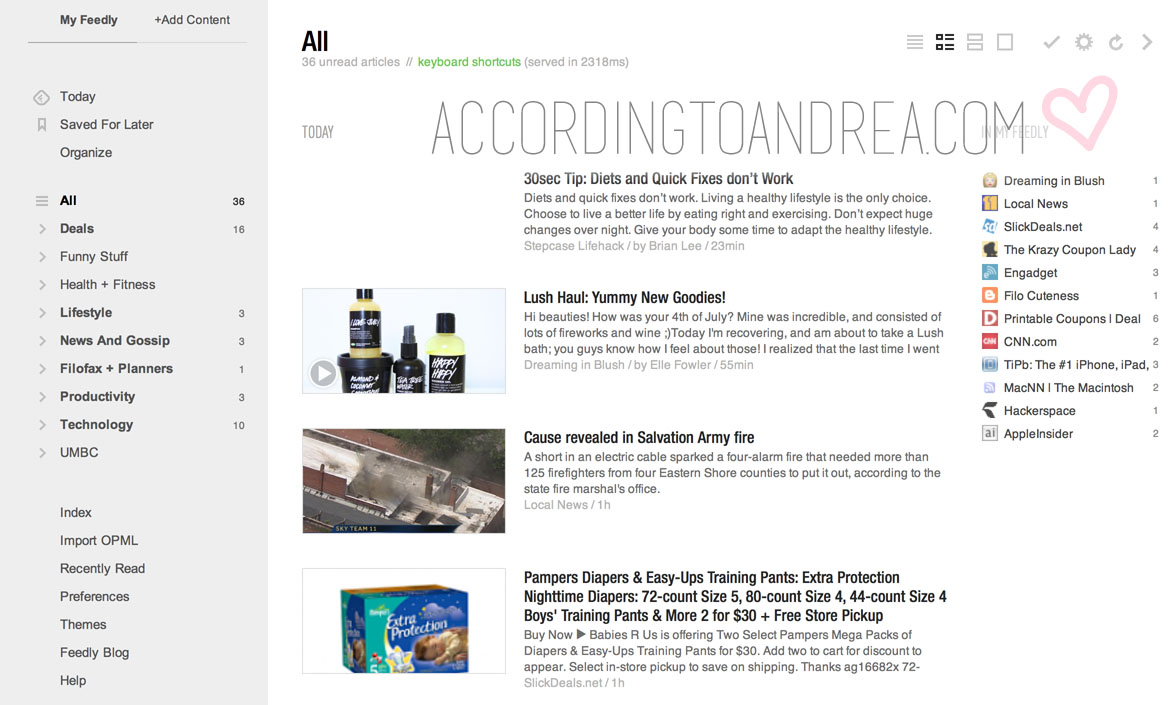
A view of Feedly in my browser.

So a ton of people posts to blogs I follow, those posts go into Feedly. From within Feedly, I can quickly skim through everything that was posted, and that’s where I choose to read the article immediately {only if it’s short or super interesting}, save it for later, or just ignore it. For now, I’m using the web-version of Feedly on my computer while I wait for my “go to” RSS Reader app, Reeder, to update both it’s Mac and iPad apps. Reeder for the iPhone has been updated to support Feedly though. {If you don’t want to use Reeder, Feedly does have it’s own iOS app that is also pretty nice.} Oh, by the way, Reeder for iPhone is currently free right now, so  if you’re interested in trying it, now’s a great time to do it!
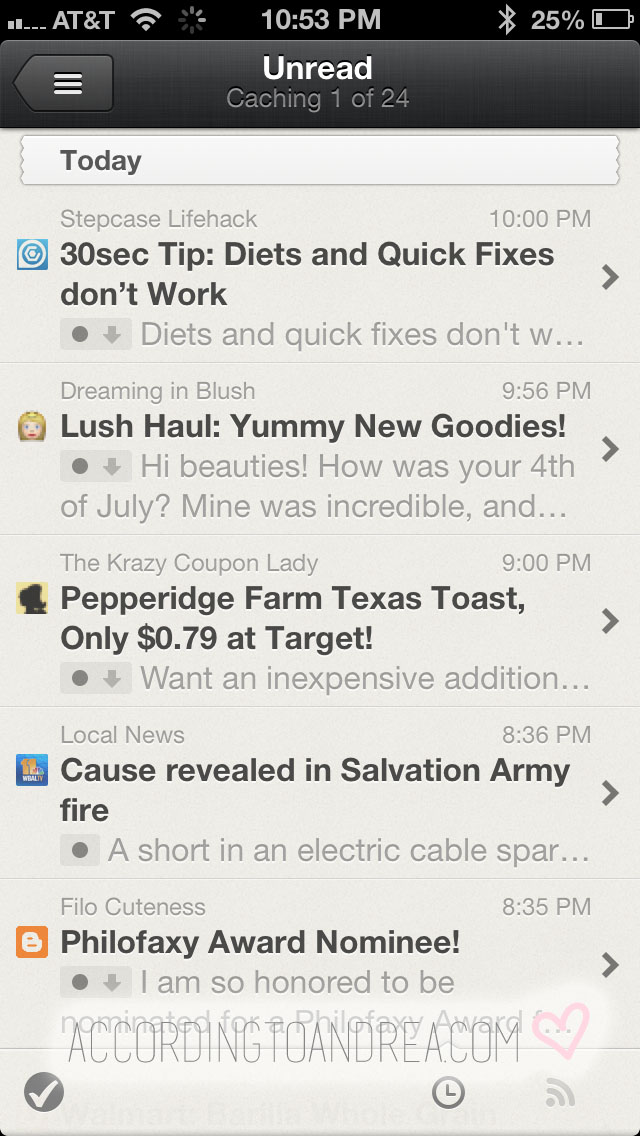
Reeder

Reeder for iPhone

Now back in the day, I starred anything I wanted to save for later in Google Reader. The downside to that is not everything I wanted to save for later was from an RSS feed which led me to Pocket. I can save anything from the web, including articles from Feedly directly to Pocket. Both Feedly and Reeder offer the ability to add items directly to Pocket quickly. There’s also a browser plug-in for those non-RSS items I want to catch up on. Then, when I have the time, I can catch up on those articles on my iPhone, iPad, or computer either through the Pocket app for Mac or the web. {When I’m on the computer, I prefer the Mac app, but it does lack some of the features of the web version like bulk update so occasionally, I do use the web version.}

Pocket App for Mac

I do have some feeds where I always read every post like the Skimm which posts a “skimm’d” down version of current events for us, “non-newsy” people. For those, I save myself a step and set up an IFTTT {If This Then That} recipe to automatically send those posts to Pocket so that I don’t have to add them to Pocket each day. If you haven’t checked out IFTTT, I also recommend it. You can set it up to do just about anything from sending you a text that it will rain the next day to tweeting Happy New Year for you. It’ll even turn your lights on or off based on events like when the sun sets if you have certain electronic gizmos.

By this point, everything I want to read or check out later is in Pocket. I’ve successfully filtered down my thousands of articles into a more manageable hundreds, but that’s still pretty chaotic. Right now, I probably have about 330 articles to catch up on. Further organization methods vary depending on my mood, but in general, I try to take care of the quick items like pictures or short blog posts first. If there’s something worth saving, for instance, a really good cleaning tip I’m going to want to return to later, I usually pin that onto a relevant Pinterest board. {I know, not the best way to archive information should the author delete content.} Since I typically catch up on things stored in Pocket while on my iPad or iPhone, I usually star {mark as a “favorite”} any particularly long articles, things better suited for viewing on a computer, or videos so that I know those are ones I should catch up on when I’m at a computer.

Now that I’ve covered my RSS feeds, I still have to do something with all those Youtube videos. Since watching videos at work is usually frowned upon, I save watching them for later. Thankfully, YouTube has a handy “Watch Later” playlist for that. On any normal day, that’s where I’d put these videos, but right now I have over 210 videos to watch, and apparently, YouTube has a 200 video limit on your Watch Later playlist which I have reached more than a few times. Now if these were silly 30-second cat videos, this wouldn’t be an issue, but videos seem to be getting longer and longer. {I have one that’s almost an hour long!} I usually try to watch the quickest videos first just to keep the number down, so who knows when I’ll actually get to that hour long video. It seems like more and more people are making longer and longer videos. {Note to all the YouTubers out there – Make shorter videos so we have time to watch them all!} For now though, I have a second playlist, “Watch Later 2.” {How original!} Anything under 9 minutes {because my shortest videos are about 7 minutes right now} goes into that playlist, and I’ve been whittling down that playlist little by little {at least until the next Web Finds}. I plan to keep increasing that time limit up little by little as I watch the shorter videos at least until I get my original Watch Later playlists gets out of the zone where I risk hitting the dreaded 200 video limit. Oh and if any of you are curious as to how I watch these {being the App hoarder I am – I like to try apps until I find the best one…}, I either connect my laptop to my TV and just watch them through the web {42″ of planners, cat videos, and Jenna Marbles…}. If I don’t feel like doing that, I watch them on my iPad or iPhone using my favorite Youtube app, Jasmine.
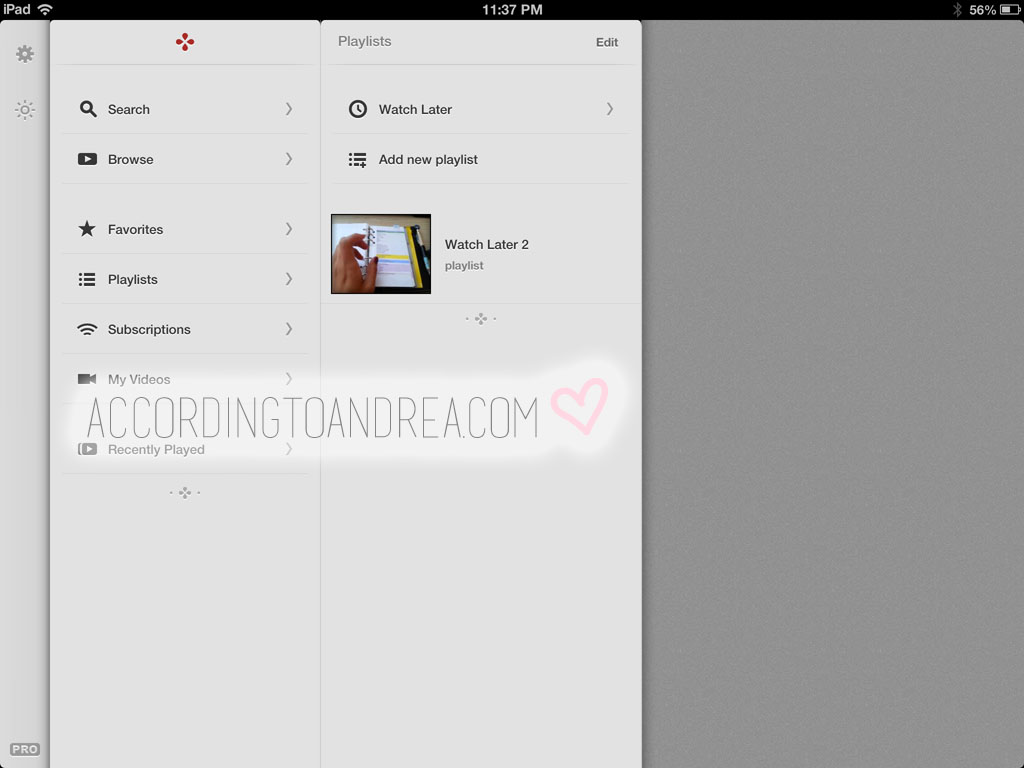
Jasmine for iOS on my iPad

Jasmine for iOS on my iPad

So that’s my super-OCD method of keeping track of what I read and watch on the internet. {Actual books, movies, and TV shows are a whole other ball game.} If you have any tips on managing RSS feeds or YouTube videos, if you happen to love any of the apps or products I mentioned, or if you just happen to get something out of this post, I’d love to hear from you.

P.S. If any of you happen to have tips on how you keep your RSS feeds organized, I’d love to hear that too. That’s one part of this process I’m not happy about. I just can’t seem to find a good way to categorize them.

And again, all apps mentioned in this post are currently free. I wasn’t asked to mention these products, I just genuinely enjoy using them, and wanted to pass them on to my readers.

Until next time,

Signature

{Filofax Friday} Using a Filofax in a Digital World

I work for my university’s Information Technology department. I’m constantly surrounded by all things digital. As I write this, I have my 27″ Apple display, a Macbook Pro with Retina Display, an iPhone 5, and an iPad all within arms reach on my desk. Sitting next to them all is my Filofax though. So how does someone in IT use both?

I’ve already given you a tour of my Filofax. Part one’s overview showed how everything’s arranged. Part two’s diary section showed how I keep track of meetings and due dates, and Part three showed how I use my daily pages. But… there was one thing missing – the backbone and brain of my system – how I keep everything scheduled, and how I remember to do things. I’d be lying if I said that I was super organized and my Filofax did it all. {I wish.} My Osterley does keep my life running smoothly, but it supplements my digital systems. I’m not sure I’d ever be able to use just a Filofax or just digital things. {This post is a little text heavy. Sorry.}

The Backbone – Google Calendar

My university has a contract with Google through Google Apps for Education, so I use Google quite a bit for work, but I even use it outside of work, because this system just works for me. I have calendars set up in Google Calendar for categories similar to the ones in my Filofax:

  • Social (pink)
  • Finance (green)
  • Personal (blue)
  • School (purple)
  • Work (orange)

I also have a few extras that either don’t need to be tracked in my Filofax, or  if they do, they get color coded as one of the areas above in my Filofax:

  • Student Employee Schedule (I make the schedule each semester for our student employees and this shows up on their calendar as well.)
  • Holidays (both my university’s schedule, and general US holidays)
  • Sports team schedules (Ravens, Orioles, Capitals)

The Google Apps suite is essential to the daily workflow of my department. We are all spread across campus so Google Calendar allows us to see everyone’s schedules and set up meetings. We use Google Drive to store the meeeting agendas that get attached to the meeting entry on the calendar, and send out meeting invitations using Gmail. Since Google is such an integral part of how we work here, it’s a good thing that this system works for me.

Each week, usually on a Sunday, I sit down and copy any new events to the monthly and weekly pages in my Filofax.  The calendars automatically sync to my iPhone and iPad. Depending on where I am, I pick and choose which way to view my calendar. If I’m out walking to a meeting across campus, it’s easier {and less attention-drawing} to pull out my phone and figure out where the meeting is than it would be to pull out my Filofax. When I get to that meeting, I probably have my iPad in front of me so that I can follow along with the meeting agenda online, but my phone’s in my pocket. In my office or at home though, I probably have my Filofax sitting close by. Either way, they all have the same information so I’m not missing out on anything no matter what option I choose.

The Tasks

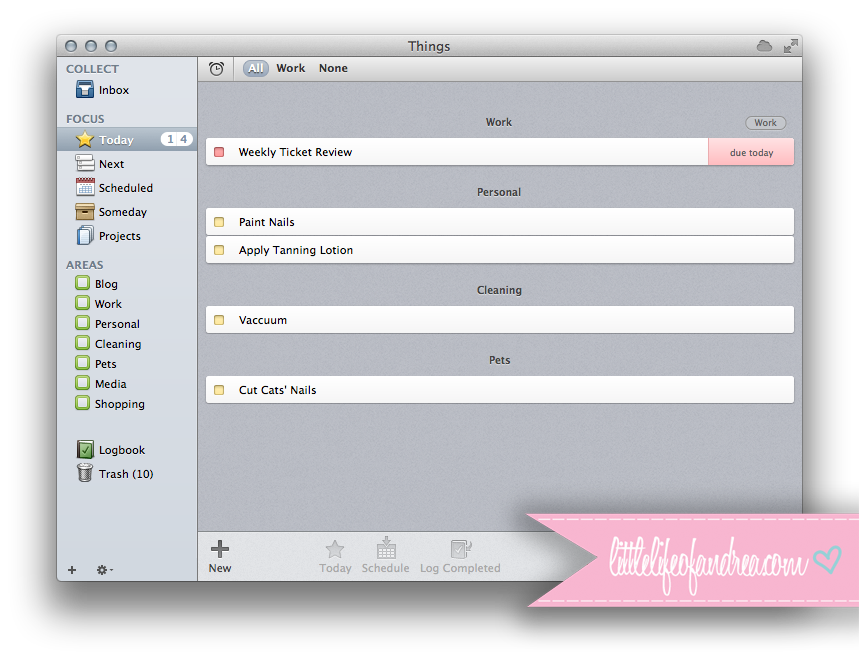
When it comes to recurring tasks, I’d be lost without the Things app. I have it on my Mac, my iPhone, and my iPad so everything syncs. I’ll admit I hated the apps when I first used them. Little by little, I found ways to use it, and now that it’s set up properly, it’s fantastic.I use Things as my master list. I know some people like to write down a master list, but I don’t like how cluttered that can get. Pretty much anything I have to do goes into Things first, and then gets transferred to my Filofax each day. If I think of something I need to do, I can put it into Things and set a due date or when to follow back up on it. Every morning, I get a list of “things” that I need to do for that day from Things, and I write them into my daily pages because I like physically checking things off. Once they are done, I get to check them off in both Things which saves them to a logbook, and in my Filofax which looks pretty.

things copy

I have the following areas set up in Things:

  • Blog – Any posts that I post every week {My Filofax Weeks, Filofax Fridays, Sunday Socials} and anything I post monthly like goals are scheduled here. I also keep a running list of post ideas. When I’m looking for something to post, I can look at the list to schedule one of the ideas.
  • Work – I copy over any items from meeting agendas into this list right after the meeting. I also have recurring things like when to submit my timesheet or when it’s my week to complete a weekly review.
  • Personal – I’m a forgetful person, so here I note when I need to repaint my nails, whiten my teeth, change my toothbrush, refill prescriptions, etc.
  • Cleaning – I hate cleaning. Without a schedule, I don’t clean. I’ve tried Flylady, but it was so detailed it drove me crazy. I ended up setting up a less detailed cleaning schedule in this particular section and it helps to keep me on track. Everything is set to repeat “on completion” rather than a specific day, so if I don’t feel like doing something, it rolls to the next day.
  • Pets – Having three cats is a full time job in itself, but mine are spoiled so they get their own category to remind me to cut their nails, brush them, etc. {Random fact: they are toilet trained, *weird… I know* so at least I don’t have to worry about a litter box.}
  • Media (more about this further down)
  • Shopping – I keep a running shopping list and wishlist here so that I can check things off while I’m at the store.

As you can see, some areas mirror whats in my Filofax. Others are broken down a bit more. For instance, in my Filofax, cleaning and pets fall under Personal and are color coded in blue. I don’t know why I do it this way, I just like breaking it down more in Things. Also, since my school assignments aren’t recurring events, I typically don’t put them into Things, because I’ve found it’s a waste of time.

So if any of you are still with me, congratulations. You’re almost to the end.

I have a Media list in Things but it isn’t for recurring events or tasks. I subscribe to Netflix for streaming and BluRay discs. We also have DirecTV at our house, and I happen to have a DVR. Each week, I look to see if anything in my Netflix queue might be coming on TV any time soon. If they are, I set my DVR to record them and remove them from Netflix, that way I can make better use of my subscription. I put an entry into Things with the title and time of day and set the due date as the day it’s coming on. I also remove them from the queue if they are going to be available via streaming soon. On the day it’s set to record or be available to stream, it comes up as a task (which I don’t put in my Filofax). If it doesn’t record due to conflicts or some other issue, I know to add it back to my queue on Netflix.

So that’s the last part of my system that keeps me organized. I like using them both for their own reasons, but a huge benefit is that information is always backed up in two places (online and on paper). I hope you enjoyed reading. Tune back in next week for some Filofax enabling.

Signature