Creating Checklist Templates in Omnifocus

As a planner person, I LOVE checklists. I enjoy checking things off, but I really enjoy the feeling of knowing I haven’t forgotten anything. I’m also an efficiency junky, and I try to streamline things wherever possible which is probably why I like checklists even more. As David Allen says in his book Getting Things Done, “There is no reason ever to have the same thought twice, unless you like having that thought.” There are very few things I enjoy thinking about over and over again, and checklists mean I don’t need to waste my time and energy thinking about planning things I do regularly more than once.

Most of my checklists are for things that repeat regularly like finalizing the schedule for my student employees which happens every Spring, Summer, Fall, and Winter or getting new pay rates approved twice a year. These happen pretty regularly, but there are a lot of moving pieces involving different people, so if I don’t get moving on them by a certain time, I run risk of having an office without employees scheduled to work. I don’t want that, nor do I want the stress of missing something in the process that looming over me especially when these things all happen at the most chaotic times of the year. These checklists are set as repeating list in Omnifocus and help to make my life *slightly* less stressful.

Much to my dismay, some things in life happen over and over again but not regularly. Having the checklist saves me time, but having it repeat regularly wouldn’t work. These are things like a preparing for trip or bringing a new employee on board. The process is pretty much the same every time, I just don’t necessarily go on a vacation every 6 months {although I may try…} or bring a new employee on board exactly every 3 months.

In the past, I saved these lists randomly with no rhyme or reason. I had checklists saved as a Google documents, others in Microsoft Word, and some in Evernote. Trying to remember where one might be was a task in itself. Having to create a task to find a check list was silly, so in an effort to simplify, I wanted to have them in one place, and since Omnifocus is my place for tasks, it made sense to keep these checklists of tasks there as well.

In my last Omnifocus post, I went over my project hierarchy in detail, but I skipped over the “Templates” sections promising to go over them later. My templates folders are where I keep my randomly recurring checklists. I have separate template folders for both work and personal tasks, but you could also keep them all together in one folder. Each template checklist is saved as its own project, and I set the status to “On Hold” since I’m not actually working on them which prevents them from showing as available tasks.

To illustrate how I use them, let’s consider the following scenario of hiring a new student. After I’ve decided to hire a new student, I simply go to my “New Employee Checklist” template, right click it in the sidebar and select Copy to make a copy of it, and paste the copy into my Student Management single action list. From there, the only change I make is to add the new employee’s name in parentheses to the end of the checklist title. Once I’ve done that, I have a ready made list of everything I need to do from getting that new employee’s payroll paperwork submitted all the way up to making sure they’ve got all the required accesses for their first day on the job within just a few clicks.

I use a similar process when taking a trip, but this checklist is a bit more detailed. My “Taking a Trip” template includes sections for preparations, packing (broken down into categories), and things to do when I get back like unpack. The packing section includes the standard items I normally take with me on every trip, but also includes placeholders so I can list clothes for each day of the trip, and placeholders to remind me of extras I might forget like a bikini and flip flops for a hotel’s indoor pool or gear for snowboarding. The beauty of this is I get a generic list of everything I need to do before and after I leave that I can add to as I see fit. It’s also a place to keep all those things I always forget to do like turn the alarm clock off before I leave.

My use of templates is fairly straight forward and simple – just a project on hold that I copy and paste as necessary. They are there to serve mainly as reminders that I don’t mind tweaking here and there. For uber power users of Omnifocus that are really interested in the idea of templates, I’d recommend checking out Chris Suave’s Templates.scpt which lets you set variables and all sorts of crazy fun things that show you the power Omnifocus has. (Note: These were made for Omnifocus 1. I’m not sure if they will work with Omnifocus 2.)

Signature Update

Omnifocus 2 is Out Today!

In honor of Omnifocus 2 being released today, I’ve decided to post a quick summary of all my Omnifocus posts so far:

If you’re interested in trying out Omnifocus 2, head over to Omnigroup’s site for a free trial. They also have a wonderful Inside Omnifocus series featuring some of my favorite Omnifocus power users that’s definitely worth checking out.

Happy organizing!

Signature Update

Organizing Projects in Omnifocus

Today’s post is going to be all about projects in Omnifocus. Here’s where I probably deviate a bit from GTD mainly because I haven’t really gotten a good grasp on David Allen’s “altitudes” concept. I’m currently reviewing his book so that I can hopefully get a clearer understanding, but for now, what I have works.

Omnifocus is great in that it lets you put projects in folders and even nest sub-projects inside projects {something Things surely lacked}. Even better it has different types of projects and lists.

  • Single-action lists are great for those collections of things you have that don’t have a clear end like a shopping list {because let’s be real, when is a girl ever done shopping?}
  • Parallel projects are good for projects with a clear end in mind that don’t need to be completed in a specific order.
  • Sequential projects on the other hand do have an order. For instance you can’t complete turn in a paper if you haven’t even written a first draft.

Now onto the fun part – how I’m actually using projects and organizing them.

For an updated look at how I’m now using projects see my new post.

Overview

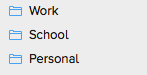
I’ve broken things down into my three main areas of responsibility. I tend to see my life in terms of being a graduate student, employee, and everything else so my three categories are Work, School, and Personal – listed in order of importance. I do this so that they show up in my perspectives in order of importance automatically.

It’s also worth noting, I try to arrange my projects and lists so that general single action lists are at the top, followed by specific projects, then Someday/Maybe lists and templates. Having things in this order pleases my OCD tendencies. The one exception to this arrangement is my folder for personal 2014 Goals which I have above my routine tasks purely because I like seeing them before my mundane tasks like clean the bathroom floor.

So let’s look at how I have my Work section organized.

screen-capture-1

  • Single Action Lists:
    • General Work Tasks – This list is for miscellaneous tasks that don’t have a specific project. Things like turning in my timesheet, re-charge my mouse, or wipe down my desk periodically would go here.
    • Student Management – This is where I keep all my supervisory tasks to keep me on track for semesterly performance and pay rate evaluations, scheduling, tracking the hiring processes of new employees, and fun things like bringing in treats for special occasions too.
    • Agendas –  I’m a big believer in saving up my miniscule thoughts and questions until I meet with someone or have enough to make sending an email worthwhile, so I keep track of those things here if they don’t fit in a specific project below.
  • Projects
    • User Support Meetings is a sequential project to track a new departmental bi-weekly meeting I’m chairing. Realistically speaking, once this gets going it will become a single action list as these will hopefully not end.
    • Remote Support Solution is also a sequential project to track the work I’m doing to research a new remote support solution for our department. Tasks here involve working with the vendor as well as members of our department to find something that works best for all of us.
  • Someday/Maybe is simply a list for things I want to do at some point, just not now.
  • I’m going to save discussing Templates for a separate post.

screen-capture-2

Moving down to School, I honestly don’t have much to say about this one right now as I’m currently taking a break from school. I was planning on applying to a new program for the Fall, but there were complications in getting my third recommendation letter submitted and I’ve missed the Fall deadline. Even though school is technically on hold,  I’m still tracking my application process for the Spring so I’ve left it active. When I’m taking classes, you’d find a project for each class. Within each project, I break down the semester into sub-projects by week and list any assignments within that.

Personal is undoubtedly my largest area, so let’s break it down:

screen-capture

  • General Tasks is a single action list for one-off tasks that don’t fit anywhere else.
  • Shopping List is another single action list where I track things I want to buy. (Items on my wishlist also go here but with a “Someday/Maybe” context.)
  • Next I have a folder for 2014 Goals. Inside you’ll find:
    • Run a 5K, a parallel project that contains a sequential project I’m using to track my training progress.
    • Read 52 books in 2014 is a sequential project where I’m checking off my reading progress. {I’m also tracking this in Goodreads, but I like checking things off.}
    • Room remodel is a parallel project where I’m tracking all things room remodel related.
  • My next folder is Routine for things I do on a regular basis broken down further into:
    • Cleaning
    • Computer Tasks
    • Finances
    • and Personal Care
  • Up next is Blog which I’ve broken down into
    • General Blog Tasks (things like reminders to post on a regular basis
    • Post Ideas
  • And of course these are followed by Someday/Maybe and Templates as with the Work section.

So there’s my Omnifocus Project set up. What I love most about writing these set up posts is that they give me a chance to be really critical about how I organize things. Certain projects or contexts seem to make perfect sense, but when you try to explain them to someone else, you realize they really fit better in another project or context. For instance, I had a single-action list for tracking what I set my DVR to record in my personal routine tasks section, but there’s nothing routine about recording a movie once, nor do I do this enough for it to need it’s own list.

Up next I’m going to discuss templates as promised, and then to the fun part, perspectives.

Until next time,

Signature Update

How I’m Using Contexts in Omnifocus

I’m going to preface this post, by saying that this is by no means how someone has to use contexts nor is it a permanent set up of contexts for my system. In the world of paper planners, a lot of people refer to the idea of radically changing your set up as “planner fail.” In the world of Omnifocus, I find that many people feel that tinkering with their setup is the norm. It’s not seen as failure but as improvement. Some even have dedicated Omnifocus “maintenance” or “ideas” projects and/or contexts. {I have to say, the idea that making changes isn’t because I failed, but instead learning how to make my system better has been a nice change of thinking for me.}

Today I’m going to give you an overview of how I’m using contexts in Omnifocus.

For those of you who aren’t familiar with David Allen’s GTD, the way I perceive contexts is that they basically define a certain location or thing you need to have in order for you to complete a task. For instance, if you need to call someone, you need to have access to a phone.

Now needing a phone to make a phone call seems pretty obvious, but when you add up all the things we do on a regular basis, it can get a bit more complicated. I find contexts extremely helpful for 2 reasons:

  1. Contexts help identify what I can do at any given moment. For example, it’d be pointless to try and complete a phone call if I don’t have access to a phone or I’m out at a concert late at night.
  2. Contexts help to batch tasks together. If you have 5 items to pick up at IKEA, it makes more sense to pick them up in one trip than to go five separate times. This also works for batching other tasks like phone calls or emails.

This is my current list of contexts in Omnifocus.

OF Contexts

  • House – This context is for any task that requires me to be at home to complete. I’ve broken it down further to categorize tasks that can be done in a particular place in the home
    • Outside – These are garage-related tasks or things like taking the trash out.
    • Basement – My basement is 3 floors away. I typically try and tackle as many basement tasks in one trip as possible.
    • Bedroom – Given that my bedroom functions primarily as a studio apartment, this is where the majority of my tasks happen.
  • [Campus]* – These are either work or school-related tasks that require me to be on campus. *For privacy reasons, I’ve chosen to rename this context and edited the screenshot above accordinly.
    • If I have more than a couple tasks that involve a particular colleague, I’ll add them as a sub-context. When I’m meeting with that particular person, I can quickly go to their context and see any agenda items I need to discuss.
  • Errands – This context is for tasks that require me to be out and about.
    • Shopping – This context is specifically for items on my shopping list which I’ve broken down further into:
      • IKEA – Gotta love IKEA right?
      • Online – Many of my online purchases can also be made in a store, so I’ve kept this context under Errands so that if I’m out, I can pick up items on my list rather than buying them online. {This will come in handy when I describe my Perspectives in a later post.}
  • Devices – It’s been said many times over, the idea of “email” or “internet” contexts have become somewhat obsolete with the myriad of internet connected devices we all carry around. This context is for tasks that require some sort of digital device but not necessarily a specific one. For tasks that do require a specific device I’ve added sub-contexts:
    • Phone – Phone calls do require a phone {and a reasonably quiet environment}, so does installing an iPhone app, so these get their own context.
    • Mac – While I can do most of my “digital” tasks on any device, there are some that do require a computer or I prefer to do on a computer. These tasks get assigned a Mac context.

My last two contexts are maintenance contexts. I’ve put both of these contexts on hold so that they do not show up in my active tasks:

  • Waiting for… holds my tasks that I’m waiting on someone else for. For instance, if I’m waiting for a product to come in the mail or I’m waiting for someone to reply to an email.
  • Someday/Maybe holds my tasks that I don’t plan on doing right away but may like to do in the future.

So there you have it, my Omnifocus contexts. As I said in the beginning, this list isn’t set in stone. I see my contexts as dynamic, and they constantly change. I do, however, have one rule – If I find that a context has only 1 task, I heavily consider whether it really needs to be in it’s own context. More often than not, it fits better in one of my other contexts.

If you’re struggling with contexts in GTD or how to set up Omnifocus, I hope this has helped. I’d be happy to elaborate a bit more on any of the contexts above if they weren’t clear, and while I’m not an “expert” at Omnifocus, I’m also happy to take a stab at trying to answer any questions you might have.

In my next Omnifocus post, I’ll be going over how I’ve decided to organize my projects.

Signature Update

April 2014 Recap + May Goals

Hi everyone!

After a record month of rain here, we’re finally experiencing some Spring weather.

Recapping Aprils goals:

  • Stay on top of keeping my room clean. – Ehh my room is reasonably clean and getting vacuumed on a daily basis thanks (I plan to do a post on this later because obviously lazy me is not vacuuming daily.)
  • Go out and have fun – I managed to take a few days off go on a fun little trip to Atlantic City. I was sick for the first few days, but I did get to enjoy at least looking at the beach and a few chilly walks on the boardwalk. Right now the only thing holding me back from going out more is the fact that my car is making some concerning noise. It also has a leak so I avoided driving it in the rain too much. It goes into the dealer this week though. *fingers crossed it doesn’t have anything majorly wrong.
  • Stay on top of my classes. – Oh boy I failed at this. I had a first draft of my term paper due in April. Thanks to my mini vacation followed by a nasty cold, my paper on the importance of self-motivation in e-learning courses was turned in only hours before it was due. I couldn’t help but smile at the irony that I was scrambling to turn in a paper for my online course about motivation in e-learning courses at the last minute. Maybe I need to improve my own motivation.
  • Get back into running. – I actually did manage to run a few times this month.

So what are my goals for May?

  • Get back on track for my goal to read 52 books in 2014.
  • Continue working on my room remodel. Hot items for the month are getting my curtains hung, getting floors installed, and getting a new desk chair.
  • Continue running and meeting my daily step goal at least. I absolutely need to run a 5K this year, preferably by September.
  • Get one of the three tattoos on my wish list. I’m leaning towards the smallest one, a small heart on my left wrist for suicide awareness, but I may get a quote on my ribs instead because I’m really wanting it. I’m also considering getting my inner conch pierced on both my ears. {As a supervisor, I’m trying to continue getting piercings and tattoos without looking unprofessional. I’m convinced it can be done tastefully.}

Seeing the progress of my room {pics coming soon, I promise} and this gorgeous weather, I’m super excited to see where this month takes me.

Here’s to a great month. Happy May!

Signature Update

April 2014 Favorites

It’s nearly May, and I cannot wait for summer. In any event, it’s time for April favorites!


1. WeMo

Oh boy. I’m addicted. In fact I bought a WeMo Switch and ended up buying another one the next day. For those of you who aren’t familiar with WeMo, it’s Belkin’s line of home automation devices. You can connect various devices and control them via your phone. I’ve been having so much fun with mine that I’m already planning what else to connect. For now, I have the lamps behind my bed and the LED strips behind my TV plugged into my two Switches. With Belkin’s app, I’ve created a rule that turns my lamps behind my bed on when I wake up in the morning and off around the time I leave. {No more stumbling out of bed in the dark every morning… well most of the time provided I don’t trip…} IFTTT also has a Wemo Channel where you can set things up like when I wake up (with my Jawbone Up) turn on my lights. I even have my lamps blink 10 minutes before I need to leave in the morning. The LEDs behind my TV is more of a convenience thing at this point, but I’m enjoying having them connected with WeMo. I may set up an IFTTT rule to turn the LEDs on when it rains. I have them set to be blue after all.

2. LocateTV

Somewhere along the line, I developed a weekly habit of checking the local TV listings to see what movies I wanted to watch on Netflix were coming on TV. It’s great in theory. I’m not spending money on movies I could see on TV, but every week, {and yes this makes me sound crazy, I know} I would open up my Netflix queue and search for every movie in the list on DirecTV’s site. It was a pain, and I searched high and low for a website that would just say “Hey! A movie you want to see is coming on TV!” Well after way too much searching, I’ve found LocateTV. It lets you add movies and TV shows to a “my picks” section and then shows you if and when they come on TV. You can hide channels you don’t get, and my favorite part, it’ll send you an email weekly too. Problem solved and a lot of time saved.

3. Taco Bell Breakfast

I don’t get out of the house before noon on non-work days too often, but when I do, you can be sure I’m stopping somewhere to get breakfast. My go-to breakfast has usually been an Egg McMuffin combo with orange juice from McDonalds, but I decided to try out Taco Bell’s new options this month instead. I ended up getting a Bacon AM Breakfast Burrito combo and the Cinnabon Delights. I was pleasantly surprised. The Cinnabon Delights are like heaven. Think warm cinnamon sugar Dunkin Donuts Munchkins with the amazing Cinnabon cream cheese icing inside. The best part, they serve breakfast until 11. That gives me a whole extra 30 minutes to get my butt out of bed and ready for breakfast. I’ve managed to do it twice in the past few weeks. Go me! 🙂

4. Back to Work podcast

I may be a bit addicted to listening to Merlin Mann speak. Where do you even start with Merlin? He’s probably best known in the internet world for Inbox Zero and 43Folders but now a days he’s not all about productivity. In any any event, he’s a bit of productivity, a bit nerdy Mac user, a bit person who tells it like it is, and a whole lot of random hilarity. If you’re looking for something random to listen to I highly recommend Back to Work.


5. Wireless Whiskers

If my LocateTV rant didn’t make you think I was crazy, this one will. This puts me in crazy cat lady territory. Wireless Whiskers is an insanely overpriced, not very great quality, solution to an absurd problem. I have three cats. The oldest is overweight and will eat everything in sight only to immediately throw it back up. Another is incredibly timid and will wait until the others have eaten everything before she eats. For years, I decided I would never be one of those cat owners who could just put a bowl of food out all day. So every morning and evening, I’d go on the inevitable search for the cat scoop I never remembered to put back, nearly tripping over 3 meowing cats anxiously waiting for food. I wanted nothing more than to save those 20 minutes spent frantically searching and tripping over cats to feed them every day. So what’s a girl to do? The obvious solution was to get one of those self-feeders, but the fat cat would eat until he was sick over and over like the people at the party in the Capital in the Hunger Games. I could get one of the timed self feeders but again, he’d eat it all and the other cats would starve. So get ready for nerdy crazy cat lady mode… enter Wireless Whiskers, the intelligent self-feeder. Every cat/small dog gets their own tag (up to 8 I believe). The bowl has a wizard mode that calculates how much each cat eats. Once it’s done analyzing, should fat cat decide he wants to eat and eat and eat, it will shut doors over the food if he’s exceeded his allotted food for the hour and then reopen when he leaves so the other cats can eat. Even better, you can choose to reduce a particular cat’s food allotment should you want them to lose a few pounds. There’s even a mode to keep the doors closed all the time unless an animal with an allowed tag comes to the bowl which is handy if you have dogs that like to eat kitty food or if you have a cat that has a special diet. Again, this is totally unnecessary but I’ve gotten a kick out of watching all the pets jump at the doors closing. I’m also appreciating not having to find that silly cat scoop or clean up after the fat cat who ate all the food in 2 minutes.

UPDATE: Shortly after writing this review, I noticed the part that holds the food for this bowl was cracked. After a long battle with their terrible and snooty customer service, they agreed to not make me pay to have a new plastic tube shipped for the product I’ve only had for a little over 3 weeks. They likened their support to better than Apple at which I had to laugh at. I imagine their customer base for those interested in this product is pretty small because the$150 for a cat bowl is utterly ridiculous, but they seem uninterested in keeping their few customers happy and do not seem to stand by their product even insisting that defects like the several I had are to be expected. I would avoid this company at all costs.

So there you have it. My favorites for April.

Signature Update

In Loving Memory

Hi everyone,

I’m currently battling a nasty cold, and resting so that I can get back to more important things in life like work or the first draft of my term paper due tomorrow. In any event, today is the anniversary of a day that really changed my life. After a year of blogging, I feel like it’s about time I share it because it is a huge part of what made me who I am today. Instead of a blog post, however, I’m actually going to share a video that’s near and dear to my heart.

Have you ever taken a class that seemed pointless but ended up changing your life more than you could imagine? For me, it happened to be an intro course that I actually considered dropping because of the final project that ended up being this video. That very first day of class as I sat staring at the syllabus in frustration, I’d have never imagined making a video about this let alone sharing with 30 people or the world now. It goes to show you how something unexpected and seemingly pointless can push you to do things you wouldn’t normally do, so without further ado, here it is.

It’s hard to believe it’s almost been 10 years now. I don’t think anything prepares you for losing a parent in that way especially at 14. It changed the way I see the world in so many ways. My prayers go out to anyone who’s currently going through a similar situation.

Rest in Peace, Dad. We love you.

Signature Update

Growing Pains with Things

Hi everyone, I’m back from a nice little 4 day vacation in Atlantic City with another post about Omnifocus vs. Things. I’ve mentioned before that I’ve outgrown Things. So what specifically started bugging me?

Things is loosely based off of GTD. This is both a blessing and a curse. It did mean I got right into using it because there was no learning curve. It’s also meant it failed pretty quickly because I didn’t think of how I should set it up.

My first struggle was with Things’ Areas of Responsibility. Because it’s loosely based off GTD, Things doesn’t have traditional “contexts.” Instead, it has Areas of Responsibility which according to Cultured Code, “allow you to group both projects and to-dos according to your responsibilities.” Areas of Responsibility to me meant things like Personal, Work, School, etc. which is how I initially set everything up. The problem is, when I’m deciding what to do, I don’t necessarily care what area of my life it’s for. I’m more worried about whether or not I have the resources to do it. In some cases, personal tasks do mix in to my work day and vice versa. For instance, if I put off calling my doctor until after I get home, they’ll probably be closed. So, using Areas of Responsibility as I initially had gave me lists of tasks categorized based on parts of my life, but with no particular regard to what I needed to actually do those things.

I took a second go at Things, and redid my Areas with more traditional “contexts” in mind. I ended up with Work, Computer, Errands, and Home. After all, I have certain tasks I have to do when I’m either at work or at home, things that I need my computer for, and things I need to do when I’m out and about. This was better, but my Today view still showed me EVERYTHING regardless of whether I could actually do those things. If I’ve learned anything from all my planning OCD, it’s that having a task in your face nagging you that you can’t do is draining. For me, sitting at work seeing that I needed to clean 6 things at home distracted me from the 2 things I needed to make sure I did while I was working.

Contexts, or Areas, weren’t my only issue though. Things seemed to lack organization in general. Again, this is makes Things incredibly simple to start using, but the more I used it, the more I struggled with it. Active projects are all kept together. My school projects with hard deadlines were mixed in with remodeling my room which is just something I’m tackling on the side. Moreover, when it came time to my class which I broke down into a project for each week, I either needed to manually schedule every one to appear x days before a certain day, or choose to make the projects inactive and manually activate the next one as I finished each week.

The issue I had with scheduling my projects leads me to my last gripe. Tasks can only be assigned a date not a time meaning, if I had to do something by the end of the day but couldn’t start it until 3PM, I still had to stare at it all day (again nagging me making me resent it). This created constant friction in deciding whether to put time-sensitive tasks without due dates on my calendar which I try to avoid, in a separate app which I also try to avoid, or just live with it.

All in all, my struggles led me to Omnifocus which has solved all of the issues I had with Things. It’s not perfect, and I’m still tinkering, but my next Omnifocus post will be about how I’ve organized my projects and contexts.

I hope you’ve enjoyed this post and thank you for stopping by.

Signature Update

Switching from Things to Omnifocus

I’ve been using Omnifocus for a little over 2 months now I believe, so I think it’s time for some details about my journey from Things to Omnifocus.

Let me start off by saying I tried both Things and Omnifocus at some point in the past and both got either uninstalled or stored away in the depths of the Applications folder for quite some time before I ever really used them. Omnifocus has a high initial learning curve which puts off many users including myself initially and truthfully I hadn’t gotten into task management enough to need it’s features or use it to it’s full potential. Things, on the other hand, is much simpler, loosely based on GTD, and looks pretty good too. As a newbie to GTD and a fan of well-designed apps, it’s no surprise that I found myself using Things.

Things is a beautiful app on the Mac {a bit dated on iOS right now until they release version 3 though.} I didn’t jump right into using Things. Instead I found myself gradually putting more and more into it – chores, tasks that repeated at intervals I was bound to forget, school assignments, etc. – until eventually it became habit for me to put everything into Things. You can read more about my early set up of Things here. As I began to use Things more, I began to readjust my system. Then came the day that I realized I trusted Things and Google Calendar enough to abandon my Filofax all together.

Sadly there came a time where no amount of readjustment to things would have solved my gripes with the app. I simply wanted more than it offered. Around that time, I discovered Mac Power Users, an amazing podcast that I listen to regularly each week. David Sparks, one of it’s co-hosts, is a huge Omnifocus advocate, and the more I listened to the MPU podcast, the more interested I got in revisiting Omnifocus.

Off I went to redownload the trial, but once again, I was immediately put off by the complicated interface. This time I perservered though. I knew Omnifocus had features I wanted that Things didn’t have like time-based or even location based tasks, and if “Mac Power Users” could figure it out, so could I. I watched a bunch of videos, read a ton of blog posts, and even read a few books, and Omnifocus finally clicked.

It took some time, and as with most Omnifocus users, I’m still tinkering {us digital planner people mess with our set ups as much as paper planner folks do if not more!}, but I couldn’t be happier I switched to Omnifocus. I’m currently in the test group for Omnifocus 2 which I’m incredibly excited about. Omnigroup plans to release version 2 in June.

I couldn’t possibly cover everything Omnifocus in one post, so I’m going to be breaking my Omnifocus journey up into a few posts that will hopefully include what I like about Things vs. Omnifocus, how I’m using Omnifocus {contexts, projects, and perspectives}, and some tips and tricks I’ve learned along the way.

Thanks for stopping by, and I hope you enjoyed reading a bit about my journey from Things to Omnifocus.

Signature Update

April 2014 Update

It’s April Fools Day!

For all of you who hate that the internet has turned into one giant joke today {well more of one that it usually is}, I’m happy to say there will be no trickery in today’s post.

So let’s look at my March goals and how I did:

  • Returning the broken/damaged parts of my bed and finally getting it put together. – *Sounds buzzer* I failed on this one. It’s still on my list of things to do. Good news is I know the pieces fit in my car. Bad news is time is quickly running out on my 90 days to get it back to the store.
  • Getting back on track for my goal of reading 52 books this year. – According to Goodreads I’m still 3 books behind schedule. On the bright side, I haven’t fallen behind any further.
  • Continuing to perfect my digital planning system. – Omnifocus is still amazing. I can’t wait until the new version is released in June. I’ll post an update on tracking things related to health soon.
  • Working on getting my finances back under control. – I’m making steady progress on this. They key is not buying a ton of useless stuff.

In terms of overall 2014 goals:

  • I’m definitely trying my best to keep up with the blog, even if the content isn’t great at the moment. I’m working on finding time to add more pictures into my posts.
  • I’m failing miserably at my goal of getting in shape to run a 5K. I don’t think I’ve been on my treadmill in months.
  • My bedroom furniture is nearly finished. I still have my desk and sofa to purchase… and of course my bed to return.

For April here’s my plan:

  • Stay on top of keeping my room clean.
  • Go out and have fun {…provided the weather’s nice. *crosses fingers*}
  • Stay on top of my classes.
  • Get back into running.

How did March go for you? Do you have any fun plans for April?

Signature Update