I’ve written in the past about my keyboard shortcuts for quick entry on my Mac. At this point using ⌘+space to launch Alfred, ⌥+space for quick entry for Things, and ^+space to jot down notes have become muscle memory.
While the app has changed a few times over the years, Drafts was my app of choice for jotting notes the longest. I mean its tag line is literally, “Where text starts,” and it’s honestly great at it. But in the back of my mind, I always felt like I just wasn’t using Drafts to its full potential, and with that nagging at me, I found myself tinkering and trying to optimize the app over and over again. I set up actions and action groups, organized my workspaces, played with themes, and hid as much as I could to make the app as minimal as possible. No matter what I did, I’d find myself myself back to jotting down notes in one jumbled workspace, and when I needed to get text out of Drafts, I wasn’t using any of the actions I created. I was using MacOS’s built in Share extension, and most of the time, the app I was sharing things to was Apple Notes. Drafts was overkill for my needs and really just serving as another junk drawer for notes, and so I kept asking myself, “Why create notes in Drafts when I could just create them in Apple Notes to begin with?”
When Apple released the Quick Note feature for MacOS with Monterey, I saw this as my chance to see if I could get away with using Apple Notes and the Quick Note feature to replace Drafts entirely.
Two years later, I think it’s safe to say I can.
By default, Apple sets up Quick Note to be triggered via a hot corner, but I already use my hot corners for other things. What I really wanted was to be able to trigger it via ^+space like I was used to with Drafts. Apple doesn’t make it easy to set up a keyboard shortcut for the Quick Note feature. It’s definitely not in Apple Notes settings where it should be, but it is possible.
To set up a keyboard shortcut for it, go into System Settings > Keyboard > Keyboard Shortcuts > Mission Control. There you should find an option for Quick Note to add the shortcut of your choosing.
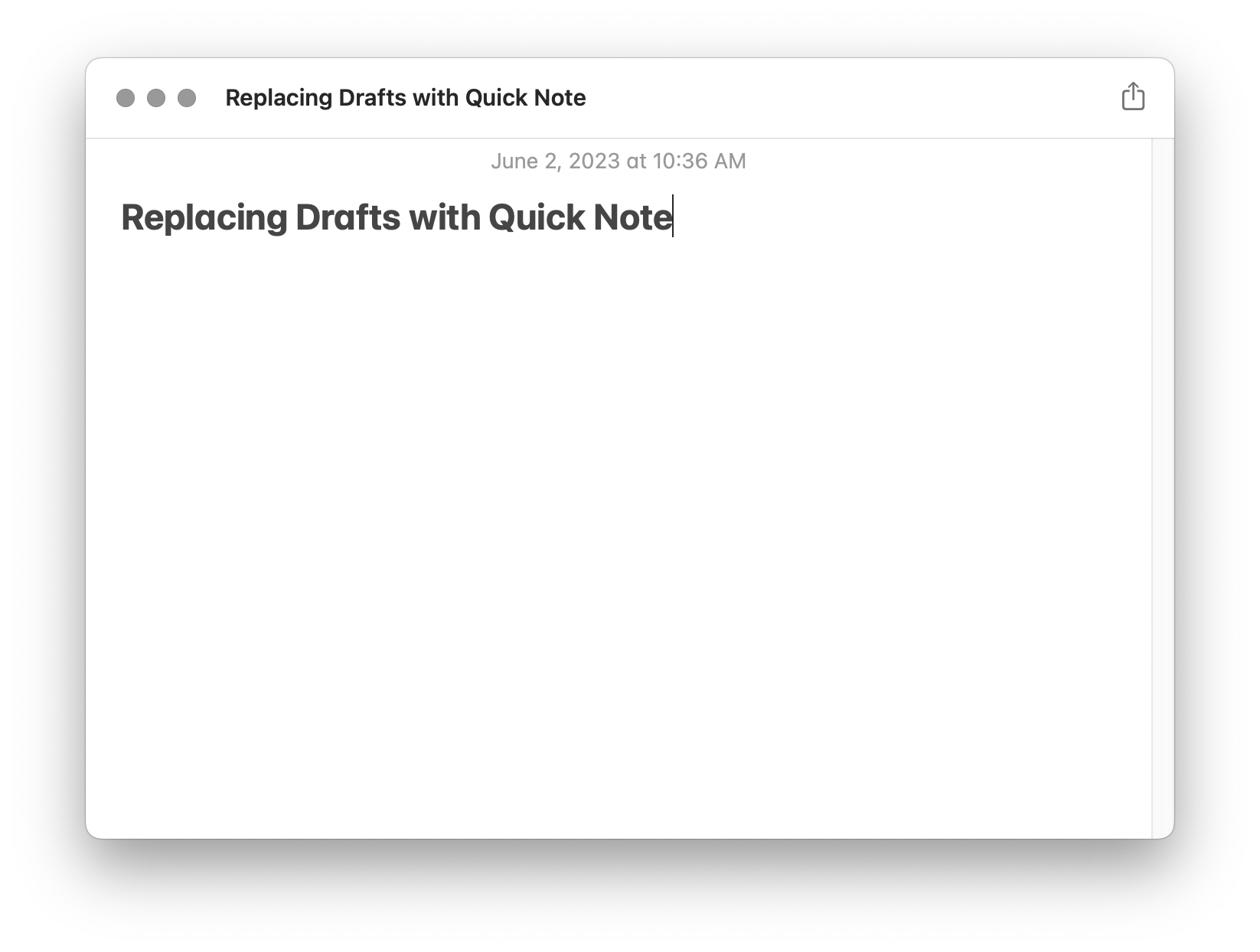
Apple’s Quick Note window turns out to be the minimal, quick note taking solution I was looking for (no pun intended). On top of that, anything I jot down gets saved into Apple Notes automatically, so I don’t need to worry about sharing it to Apple Notes. I can also share it out to other apps if I need to using the share extension, and because I already review Apple Notes every week as part of my weekly review, that’s also one less inbox I need to review every week.
If you’ve wanted to use something like Drafts for quick text entry, but felt it was overwhelming, I highly recommend seeing if Apple Notes can fit your needs. It certainly fit the bill for me.
 According to Andrea
As Apple started adding new features over the past couple of years, and fixed most of their iCloud sync issues, I’ve started using the Notes app almost exclusively for note-taking. And, this could just be a mental block I’ve created for myself, but I see notes as a great app for note-taking, but not really as a longterm solution for storing/referencing PDFs, archived research, my own documents that are too long to be considered note-taking, and whatever else falls under “personal knowledge management.”
I have many years of all kinds of stuff that spans across various apps, file systems, etc., and it would be nice to slowly consolidate it all into one or two places for easier management.
I skimmed through a few of your posts, and saw you mention a few other databases like Evernote and DEVONThink. Are you using Notes for everything now, or a combination of Notes with something else as a knowledge management system?
Hi Michael,
I’m using Apple Notes for my PKMS but it definitely hasn’t replaced my file storage. I don’t consider plain files that I’m working with regularly or am keeping for long term storage as part of my notes and manage those in Finder.
For what it’s worth, I spent a lot of time wanting to consolidate everything into a single place and eventually realized I was thinking about it all wrong. The single system/place I was looking for wasn’t a single app but rather my device(s). Once I expanded my thoughts up one layer, viewing my iPhone/Mac as the system, having everything in a single app stopped mattering. It also means I can use the best app for each type of information and I don’t have as long of a laundry list of must-have features if I do want to switch apps.
I hope that helps, and thanks for stopping by,
Andrea