Today I wanted to check back into a post I shared recently about how we’ve been approaching meal planning.
We’ve been using the Cook Once Eat All Week cookbook for 8 weeks now. I feel like I can count the number of things I’ve stuck with for 8 weeks over my entire life on one hand, so to say that we’ve stuck to this for so long says something about how well it’s working for us.
As I mentioned in the prior post, each week we pick a week that’s in season from the book. I actually wrote the seasons directly in the book so it’s easily accessible but she offers a Seasonal Guide chart as a downloadable PDF when you buy the book. Admittedly, now that we’re several weeks in, it’s becoming more challenging to pick a week that’s in-season that we’d both like that doesn’t seem like something we just had, but with a little compromise, we’ve been able to make it work.
One of the things I also mentioned was that I’ve been keeping a log of sorts in Evernote to capture our thoughts on each of the weeks we’ve tried. In the log, I include a link to a separate note containing photos of the recipes and meal prep instructions (more on why below), the main ingredients, when the week’s in season, how easy or hard the prep was and how we liked each of the meals. At the end of the week, these give us a pretty good idea as to whether we would make the week again, so I color code the week accordingly.
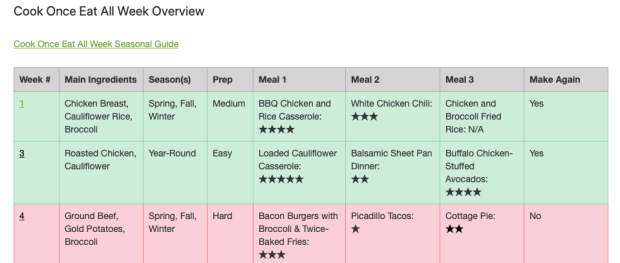
One of the unexpected benefits of keeping this log is that it’s allowed us to see that many of our favorite recipes, despite being from different weeks, still share similar ingredients. With our confidence in meal prepping increasing with each week, we’ve started toying with the idea of our own custom “weeks”. (Side note: I realize the concepts of meal planning and prepping aren’t new, but they are fairly new to us, so the concepts in this book have helped teach us the basics without seeming overwhelming.)
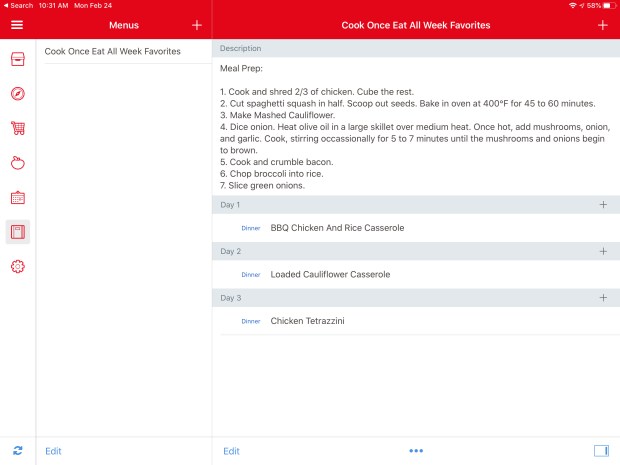
I was already saving our favorite recipes from each week into my recipe manager, Paprika, for safekeeping, and Paprika’s built-in menu feature makes creating custom weeks almost as easy as having them in the book. To make a custom week, I pick 3 of our recipes with similar ingredients to add to the menu. In the description section of the menu, I note any meal prep instructions specific to those meals. Since many of the ingredients are similar, we can still take advantage of prepping in bulk ahead of time. As far as the grocery list, Paprika does all the heavy lifting to combine like ingredients and generate a grocery list that can be sent directly to our shared shopping list in Reminders.
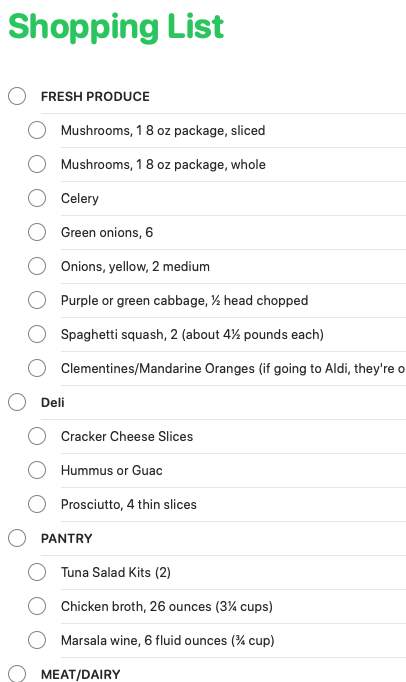
 Speaking of our shared shopping list, for weeks we pull directly from the book, I’ve been saving time by copying them from the ebook (If considering the ebook, be sure to see my note below). Each week, I copy the week’s grocery list and paste it into Drafts. Unfortunately, this removes all the line breaks, so do I have to go back and add them back in, but from there, I just use a Send to Shopping List action to send everything directly to our shopping list. As an added bonus, the sections Cassey breaks the items into tend to map quite closely to our local Aldi’s layout, so I keep them and indent the ingredients as sub-tasks to organize the list.
A note on the Kindle version: As someone who prefers cooking from my iPad, I bought a copy of the Kindle version of the book thinking I’d be able to use it while cooking. However, the Kindle version strips out all of the formatting that makes the physical copy of the book so easy to follow. (This is the reason I’ve been snapping pictures of each week’s recipes to Evernote.) If you’re an e-book person like myself, I strongly recommend NOT getting the ebook version of this book.
In my first post about how we were meal planning, I shared a few of the benefits we saw right away (mainly focused around keeping our kitchen cleaner), so before I go, I wanted to wrap up by sharing some of the other benefits we’ve noticed now that we’ve been doing this for a couple of months :
- Because we have a plan for the week, impulse buys have pretty much stopped. Don’t get me wrong, we still grab the occasional ice cream or candy, but our pantry, fridge, and freezer are no longer bursting at the seams with random ingredients we picked up thinking they might be useful for a meal one day.
- We have a better understanding of what we actually have. Without all the random ingredients, it’s easier to notice the extra chicken in the freezer, which means we reduce the amount of chicken we buy for the week accordingly to use up what we already have.
- We’ve started making better use of our freezer. Another benefit of having a freezer that’s not overflowing with freezer meals is that we actually have room to freeze leftover ingredients and meals, instead of letting them go to waste.
- We’ve reorganized our kitchen. In most cases, this was as simple as relocating things we use regularly to be more easily within reach, but we did spend a few dollars on things like lazy susans or bins to make better use of our space as well. As a vertically challenged person, not having to get out a step stool to grab things is a huge time saver.
- We’re learning which tools we use, which we don’t, and most importantly what’s worth upgrading. For example, I had been thinking about replacing my cheap set of kitchen utensils for a while, but it turns out, nine times out of ten, I reach for my favorite spatula when cooking. I ended up just buying another spatula instead of a full set.
One last thing of note, while you can buy a spiral-bound copy of the book, the copy we have is the regular paperback version which has a tendency to close while we’re cooking if we don’t weigh it down. Recently, however, I saw someone who had rebound their copy using discs and seeing as how I still had a disc binding punch leftover from my paper planning days, it seemed like a logical upgrade for our book as well, so wish us luck in performing a bit of surgery on our copy.



 According to Andrea