Paper vs. Digital Planners

It’s no secret that I love planners. It only takes a quick glimpse at the blogs I read, the pictures I’ve favorited on Flickr, or even this blog to notice.  It’s also no secret that I love technology. I work for an IT department, and have even been referred to as iAndrea for having so many Apple products. {I’m not even joking.}

In high school, I practically lived out of my monthly/weekly planners the school provided. Ever since then though, I’ve been buying planner after planner hoping one would magically solve all my planning needs. Clearly I haven’t come across one yet, because I’m still struggling in the paper planner world, but if I do find one, I’ll be sure to let everyone know.

Before I continue, I want to clear up one thing. I write about planners a lot, and I have a LOT of calendars and a LOT in my calendars for that matter. I have had some people in my life claim they need to book an appointment with me just to hang out after hearing about it. {Think 27 Dresses, where the guy penciled himself in throughout her Filofax.} That’s not me. My Filofax/planner/whatever does NOT rule my life. In fact, I’d say 90% of what I write down with the exception of work related meetings doesn’t even get done. I just like to {pretend to} have a plan about where I’m supposed to be or supposed to be doing. It’s my way of dealing with anxiety, and I also like going back seeing what I’ve done or written down. It is by no means some minute-by-minute guide for my life.

Anyway, with that rant out of the way, I’ve been carrying my Filofax with me everywhere for months even though I rarely even use it anymore. Don’t get me wrong. It makes me feel incredibly fancy when I grab my Osterley out of my bag, and it makes me look crazy organized even though nothing’s written in it, but looking pretty isn’t what an organizer is actually for. Lately, I’ve actually started thinking that maybe I’m not in planner fail at all. {Crazy idea right?!} Maybe I just don’t have a use for a paper planner anymore. Maybe I’m just trying to use it because I’m used to carrying it around. The more I thought about it, the more it seemed to make sense. I mean, before I got to college, phones weren’t allowed in school, and laptops were almost taboo until senior year. Tablets weren’t even a thing yet. I HAD to use a paper planner. Ever since then, there’s been nothing stopping me from using my phone/iPad/laptop instead.

With that in mind, I started to think about what I gravitate towards when I do need a planner.

  • When I’m at work and have to schedule a meeting with someone, I open up Google Calendar on my computer.
  • When someone wants to schedule a meeting with me, they do it through Google Calendar, and I get an email invitation.
  • When a friend asks me to meet for dinner, I add it to Google Calendar from my phone.
  • All of my recurring tasks are in Things.
  • Anything I think of spur of the moment usually gets put into the inbox in Things.
  • Outside of that, my other to-dos are either in my email or in Pocket/Readkit.
  • And meeting agendas are in Google Drive.

Nothing is on paper. Everything is digital, so it makes sense that I wouldn’t check my Filofax. My Filofax ends up being just another place I have to write things down, and being the efficient person I like to be, why waste time doing that if I’m not getting anything out of it. Even the other things people track like health, books to read, or wishlists are online for me using my Fitbit, Goodreads, and Pinterest.

So here’s what I came up with about why I prefer using a digital calendar instead of a paper planner.

  • One device is all you need. At the very least, I have my iPhone with me, and that’s all I need. My events aren’t in a planner while my contacts are in another.
  • I can color code without toting around multi-color pens and highlighters.
  • I don’t need to rewrite things. Whether I check it at home, at work, on my phone, iPad, or computer, it’s the same everywhere.
  • I can switch between daily, weekly, monthly, and even yearly views whenever I want without adding any bulk, having to rewrite things, or spending any money on inserts.
  • When plans change or I make a mistake, I don’t need to worry about whether I wrote it in erasable pen or how I can cover up the wrong information if I didn’t. I just have to edit the event. For a perfectionist, this is a huge win for me.
  • When I need to schedule an event well in the future, I never have to worry about where to write it down until I get next year’s inserts.
  • If I want to remember when something happened, I can search for it immediately rather than worrying about whether I removed inserts and if so where to look for them when I get home.
  • On a similar note, there’s no need to worry about where or how to store inserts or planners that you aren’t using. {I usually end up putting them in an old empty Birchbox and then losing the box in the pile of other boxes I did the same thing for the months before that.}
  • I don’t have to keep writing recurring events. When 90% of your life is routine, recurring events, it’s nice to not have to waste time rewriting them every day/week/month. It also keeps me on a regular schedule for appointments with doctors or when I need to get my hair done. {I will forget and it’ll be years before I go otherwise.}
  • Google calendar reminds me of events I might forget. If I have a meeting after lunch, you can bet I’ll forget about it if I don’t have a reminder, even if I wrote it down in my planner that morning and saw it on my calendar about 20 times. With Google Calendar, I get a reminder 15 minutes before my event which is enough time for me to get nearly anywhere on campus in time for the meeting.
  • It allows other people to tell me when they are available or unavailable. My coworkers share when they are leaving early or when they’ll be out. Similarly, my mom shows me when she’ll be away, and I need to watch her dogs. Simple.
  • I can choose which calendars I want to see. Some days I want to see when the Ravens are playing more than my Workout calendar. Some days I may want to check the dates on my university’s academic calendar, and other days I may want to see how my appointments line up with my daily routine. With Google calendar, I can choose to look at one calendar, a few of them, or all of them. I don’t always need or want to see everything, but it’s there if I ever need it. You can’t say that with a Filofax. It’s either there or it isn’t.

I’m sure some of you planner people are cringing at the idea digital could be better than paper, but for me it works. One of the most common things people mention in the digital vs. paper debate is battery life, but for someone who carries a battery pack and a car charger nearly everywhere, I’ve only once or twice been in a dead phone situation, but that was my own fault for not bringing the battery. Even so, I’m never going in a situation when my phone is dying {usually around 10pm} and I have somewhere to go to on foot. Moreover, phone numbers aren’t an issue for me either, because I rarely use the phone, and for those people I do call, I have memorized their numbers.

So for now, I’m actually thinking of leaving my Filofax home, and the thought of it makes me uncomfortable. Even though I’m not using it, I’ve carried a planner for so many years {since I was in elementary school really}, not having one to carry makes me feel like I’m forgetting something.

However, the point that proved I don’t need to be carrying it was that my first concerns were where would I keep my pen and store reward cards – two things I wasn’t carrying it around for. The pen is now going to live in the pen loop of my purse organizer, and I am relocating my cards back into my Vera Bradley wristlet. Problem solved.

I don’t plan on abandoning the planner world. I still very much enjoy reading about and seeing everyone’s lovely planners, but right now, it’s just not for me.

Signature Update

What’s on my iPhone?

I’ve got a bit of a tech theme going on here lately, so why not continue it with a post about what’s on my iPhone?  And why not on the day Apple announced the newest iPhone models?

It takes about 5 seconds of knowing me to know I’m an Apple girl. I’ve been using Macs since I was 2, and while there were a couple years that I used PCs, in high school, I went back to Mac and never looked back.

I’m now on my 3rd iPhone, so I’ve tried my fair share of apps over the years. I had originally planned to go over all the apps on my phone, but despite being pretty strict about what apps stay on my phone, I still have over 90 apps – much too many to review each and every one, so I figure I’ll give you an overview of how I organize the apps on my phone, and then I’ll go over some of my most used apps.

Let’s start with the home screen. These are apps I like to have quick access to or be able to glance at quickly.


iPhoneHome

  • Across the top row you’ll find Calendar, Weather, Things, and Fitbit. These are all apps I like to check in the morning when I’m getting ready.
  • Next is Clock, Calculator, Phone, and 1Password. These are all tool/utility type apps I like to have quick access to.
  • The next two rows don’t exactly have a specific category. They are just apps I use frequently or like to have on my home screen. So here, you have Pocket and Reeder. Camera+, Light, and Waze.
  • And of course you’ll find the App Store and Settings.
  • In my dock, I try to keep apps I use most frequently or need quick access to in the car like Spotify.

Now onto the rest of the apps. I only have one page of apps aside from my home screen. Any more than one page, and I start freaking out. I also like to keep them all in folders mostly organized by activity.

iPhoneFolders

  • First up we have the Apple folder for all those apps Apple insists on putting on the phone and won’t let you remove.
  • The next folder is Files. This is where I keep all my cloud storage apps.
  • I’m not really into playing games on my phone much any more, but I do have a folder where I keep a few should I for some reason actually have nothing to do.
  • I keep any fitness apps in the Health folder.
  • Misc. is my folder for anything that doesn’t really fit in the other folders. When this folder starts getting full, it’s usually time to consider adding a folder or getting rid of some apps.
  • Any apps related to books or audiobooks are stored in my Read folder.
  • The $ folder has any shopping, bank, or credit card related apps.
  • Social is of course for social networking apps.
  • And last but not least Watch holds my video related apps like Netflix.

So which apps are my favorites? {By the way, I’m limiting this to non-Apple apps. If you use an iPhone you already know Apple’s apps.}

  • Spotify without a doubt gets used the most. I use it to listen to music in the car. I also use it stream music to my stereo when I’m at home.
  • Mailbox has revolutionized the way I deal with email. It’s also finally given me a way to take a break from work emails when I’m out of the office.
  • I’ve bragged about Things in the past. I’ve used this app for years on my phone, iPad, and Mac, and I don’t see it going anywhere anytime soon. It’s my favorite task management app, and I’ve tried quite a bunch.
  • 1Password is by far the best password management app I’ve ever used. In fact, I love it soo much, it was first piece of software I ever paid for on my Mac. When the latest iPhone version was released, I even stayed up late to get it when it came out. {Not even embarrassed about it…}
  • I’ve posted about how Pocket has changed the way I read content on the internet. Spotify
  • Reeder is by far my favorite RSS reader for iOS, and I’ve tried quite a few.
  • My go-to navigation app is Waze. In fact, my car has a nav system built in and I still use this one. I also love trying to figure out who around me is using Waze when one of the little Wazer icons pass mine.
  • Health-wise, my favorite app is the recently released Blogilates app. It’s well worth the $.99/month to get the calendar. Every day you get a list of video workouts and you can check them off as you go. Super simple.
  • and last but not least, I’m a big reader, so I use GoodReads to update my reading progress and keep track of what I’m reading.

Well that’s it. I hope you’ve enjoyed my quick tour of my iPhone.

Signature Update


Inbox Zero… It Does Exist!

InboxZero copy

About a year ago, I ran across a term, inbox zero. After a bit of Googling, I discovered that the term Inbox Zero is the term people use to describe having no emails in their inbox. Apparently, some people really struggle with obtaining this “Inbox Zero” which was a surprise to me because I usually had only a few emails in my inbox at most, but then again I’ve also seen coworkers with 1,000+ emails in their inbox.

So how do I achieve Inbox Zero?

Let’s start with some background. I’m not one of those people who doesn’t use email. I have 5 Gmail accounts that I use daily. I get on average around 400 emails a week+ spam not even including work/school-related emails, but at the end of the day I rarely have more than 10 in my inbox.

Maybe you’re thinking, “5 accounts?! You’re crazy.” {Maybe just a little… 😉 } But they each serve their own purpose.

  • Main account – I sign up for accounts using this address.
  • Personal account – If I know you personally outside of work, you get to use this address.
  • School/Work account – Anything school or work related goes to this account.
  • Survey account – This is the account I use to sign up for offers and such. It was originally just for paid survey sites.
  • Blog account – Lastly, this one’s pretty self explanatory. If it’s blog-related, I try to use this account.

The great part to having multiple email addresses is that each address can serve a particular purpose, but that also means you have to check them all. If you use a mail client like I do, you also run the risk of sending messages from the wrong address. {Sending an important work email to a client from my personal address is something I prefer not to do.}

I’ve tried consolidating these addresses in one way or another more times than I can count, and I’ve failed each time up until recently.

So what did I do differently?

Rather than forwarding ALL of my emails to one account. I only forwarded some of the accounts. All emails from my personal, survey, and blog accounts get forwarded to my main account. Since I work at the same university I study at, those two are already consolidated. I then have two email accounts to check: my main account for personal things and my school/work account for professional things.

Why I didn’t think of this before is beyond me, but it’s so simple that it just works.

Now onto what I use…

Right now, on my Mac, I use Sparrow as my mail client. Sadly, Google bought up this app and development for it stopped, so I’m still looking for a better alternative should Sparrow ever die completely. Everything I’ve tried so far is too cluttered.

For my iPhone and iPad, I’ve fallen in love with Mailbox which I mentioned in my February Favorites post. For anyone who has coworkers that like to do all their work at 10pm on a Friday evening, you’ll love this app. Given that my boss has told me I’m under no obligation to respond to messages outside of work, I take full advantage of Mailbox’s snooze feature. When a work-related email comes in, it gets deferred until I’m back in the office. Similiarly, I can also defer personal emails until I get home.

The last service/app I use is something I stumbled upon recently. It’s called Sanebox. I purchased the 2-year “Snack” package which works out to be around $.06/day with a promo code I used. Right now, I’m only using this on my “Main” email account, so this only affects my personal emails. I prefer to get my work emails as they get sent. With Sanebox, non-important, newsletter-type emails get moved from my inbox to a “SaneLater” folder. Then, once a day, I get an email summary of anything that’s been moved to SaneLater. From that email, I can choose whether to move a particular email back to my inbox, choose to always send emails from a particular sender directly to my inbox instead, delete the messages, or archive them. Once a week I get a summary email with fun graphs and numbers like how much time I saved. Now, I’m not even close to using Sanebox to it’s full potential. It can do other things like save attachments to Dropbox or Box, or integrate with social networks. You can set up other folders too, but the real beauty of it all, is that this does’t require special apps or anything. It’s just folders! If something should have ended up in SaneLater, I just move the message to that folder in whatever I’m using to check my mail (Gmail, Sparrow, Mailbox, etc.) and Sanebox learns.

So to summarize my recipe for Inbox Zero…

Gmail Accounts + Mailbox app + Sanebox = Inbox Zero

Now obviously it’s not that simple, if it were, everyone would have empty inboxes, but for those of you who are inbox-zero challenged, here are some tips that will help even if you don’t use the apps mentioned above:

  • Have one account that you use to sign up for things. Even if you don’t have 5 accounts like I do, just this one will keep your junk mail in one place. {Be sure to use different passwords… nothing worse than someone like an ex getting access to one password and having access to ALL of your accounts!}
  • Delete, Do, Defer. This is my one rule for keeping my inbox count low.
    • Delete what you don’t need immediately.
    • Do anything you can take care of within 2 minutes immediately.
    • Defer any emails you can’t address immediately until later. {Gmail’s star function works great for this, so do folders. Just get it out of your inbox into a place you can check later.}

Is your inbox out of control? Do you use any of the apps/services mentioned above or something similar? Do you have tips of your own? Let me know in the comments below!

Signature

{Filofax Friday} New Goodies and Yet Another Addition

Happy Friday everyone!

Since I’ve gotten back into Filofaxing lately, I decided it was time to do a Filofax Friday post again. I’ve managed to get some fun goodies over the past month or two, so I’m going to share them all with you today. It’s a long list, and while I fully admit I have a shopping addiction, this haul was bought over the past two months, so it isn’t too bad… right?

IMG_2451

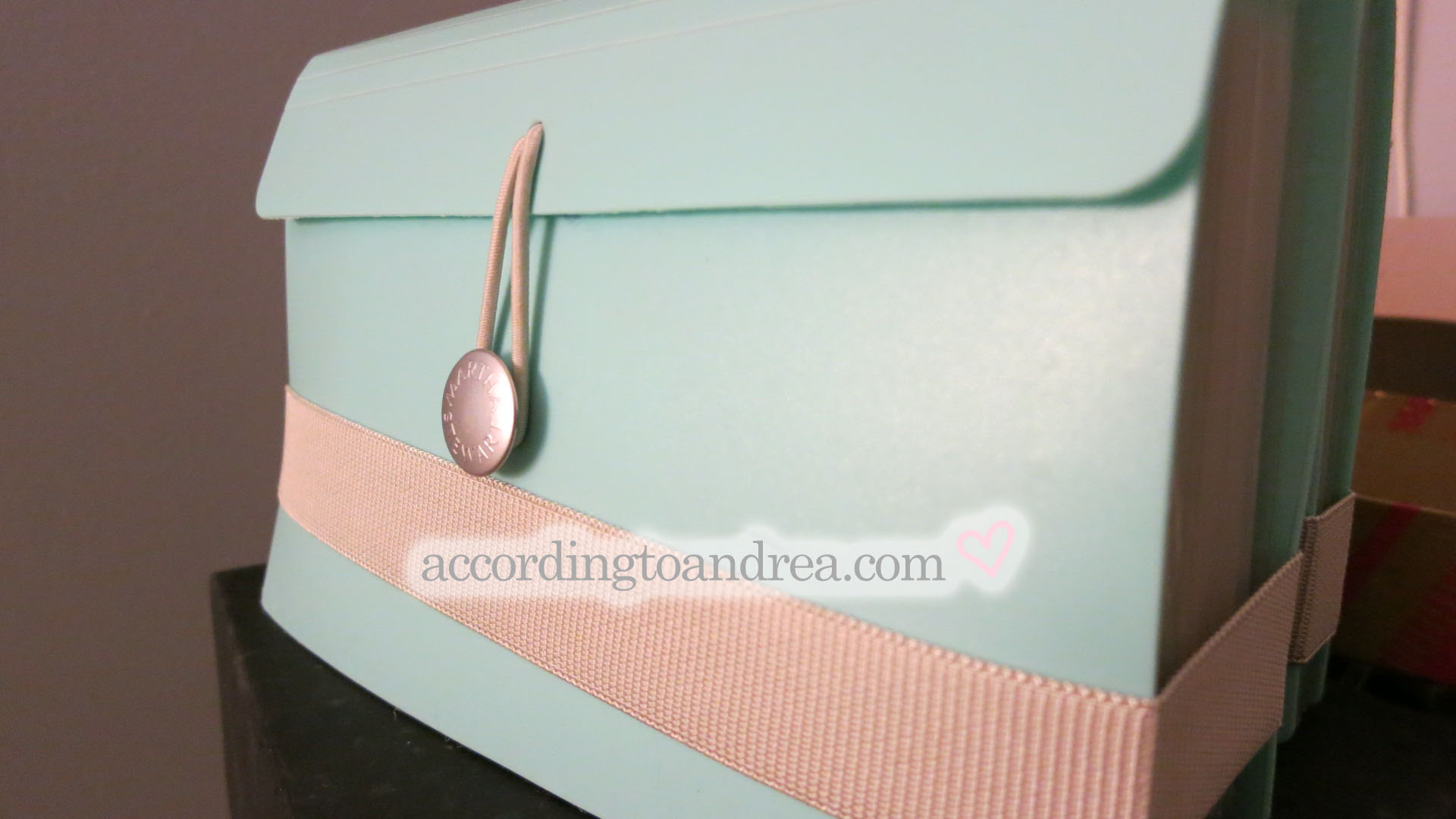
First up, I picked up two of the Martha Stewart expanding files from Staples. Adam from Adamsfilo on YouTube had shown how he used them to organize his inserts, and had been wanting to get something similar even before seeing his videos. The fact that the aqua color in the Martha Stewart line matches my room’s new color scheme had me sold. I picked up two, but truthfully, I could have used more. Now my unused Filofaxes can go back in their boxes, and my inserts are a bit more organized.

IMG_2454

I also picked up some goodies from Michaels. I finally bought some of the stickers that were prepunched to fit in personal sized binders, some stamp ink pads, some fun pen-style ink pads from K & Company (perfect for stamping on the go…), and some other fun bits and bobs. In the picture above the closest ink colors look to be purple, orange, and gold. The colors are actually pink, orange, and yellow. There’s a bit of a shadow in the picture, but the labels on the inks are also really off, so it’s not just my camera. Figured I’d point that out in case you’re interested in picking them up.

IMG_2457 copy

When I saw Nadine’s video on the new StudioL2E Plan It stamps, I had to have them. They arrived about a week ago, and I can say that I adore them already. They are going to get so much use it’s not even funny.

IMG_2461

Now on to the Amazon goodies. I ordered some stamping blocks for my stamps. I also ordered some stickers and flags, and one of the Cosmos Passport Organizers everyone seems to be toting around with their Filos. You can see them all above.

jetpens

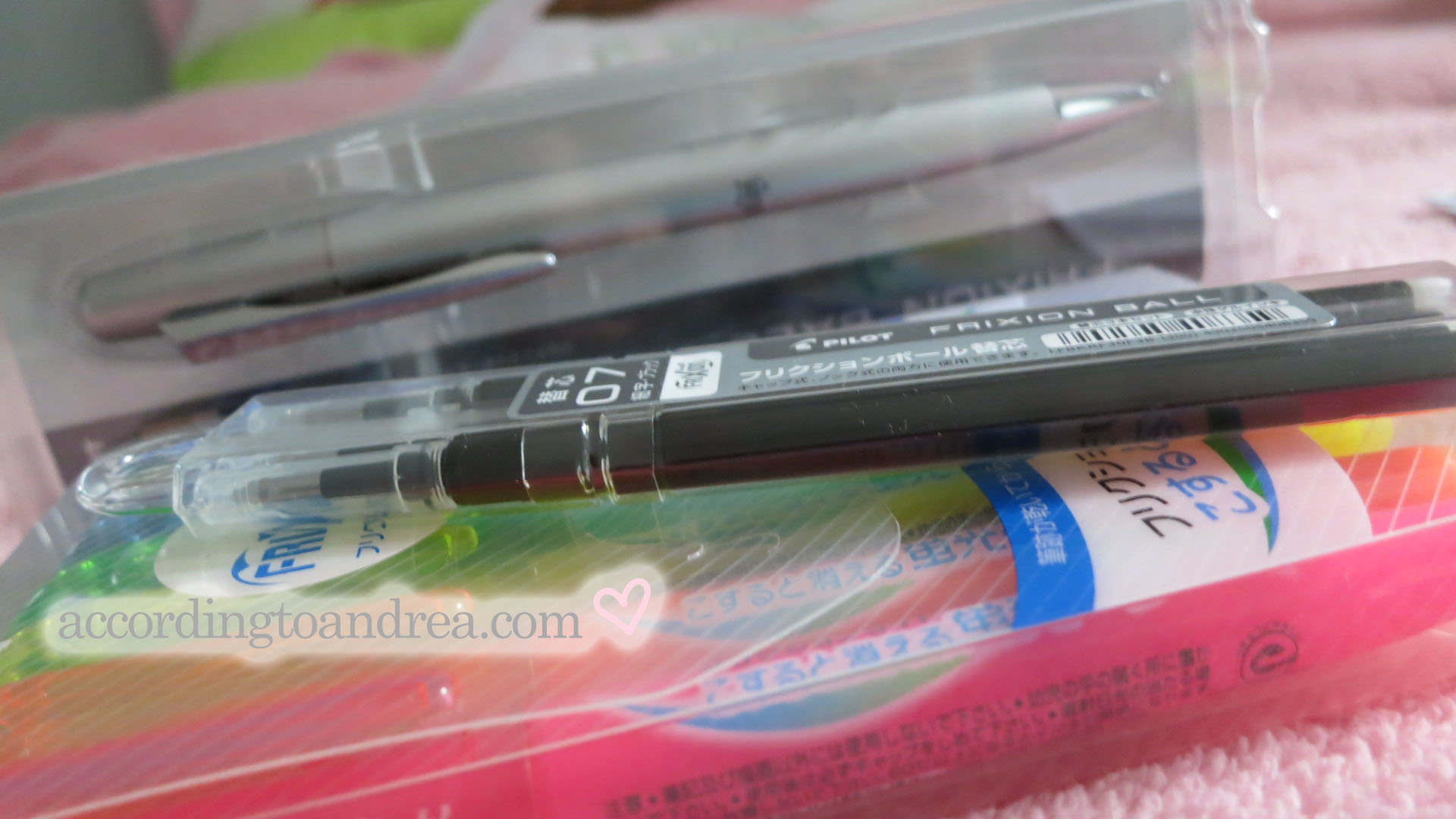
Next up are some fun things from JetPens. My Frixion highlighters were running dry so I ordered a new set along with a snazzy Frixion retractable pen and some black refills. Earlier in the month, before I decided to go back to black pens and highlighters, I had also picked up a complete set of retractable Frixions pens, and the Frixion markers in all the lovely colors as well. I may not have needed so many, but I fully stand by the statement that you can never have too many Frixions, and I’m sure I’ll find a use for them.

swarovski

While we’re on the subject of pens, I ordered a Swarovski pen off of Ebay. I have no idea whether or not this pen is a real Swarovski pen, but it’s still gorgeous. It adds just the right amount of sparkle to my Osterley, and it writes nicely.

Almost done… I promise. I just couldn’t help myself with these last two purchases.

Lifeiscrafted

I ended up ordering the Life is Crafted Wo2P inserts for Personal size. They were pricey which is why I kept putting it off, but I kept coming back to them. I can say they were totally worth it. I honestly squealed with excitement as I opened the package. Arienne sent them along with some lovely extras like things from Kikki.K which we don’t have here in the US, a funny little post card, and even a cute handwritten note! The inserts are adorable as I had expected. My poor Osterley is a bit stuffed now, but by far, my favorite part has to be the dividers for the months. They put any other dividers I’ve ever seen to shame in terms of quality and design. I’m so happy I got them.

And last but not least… the unexpected addition.

I have quite a few saved searches on Ebay for random binders I’m on the look out for. You know for the ones that are discontinued, you can’t find anywhere, and you’re just patiently waiting for someone to decide to sell theirs… For me, one of those was a personal ochre Malden. I’m not sure if anyone else noticed, but the supply of ochre Maldens for some reason just exploded on Ebay quite recently.  Of course, I didn’t jump on any until I realized the only one left was starting at $120 or Buy It Now for $156 PLUS shipping! Crazy!

Of course the little voice in my head started saying “STUPID! YOU WAITED TOO LONG!” and then, like I did with my Osterley, I went to Google frantically searching away. I found one at Pen Boutique thankfully not for $156+shipping but for $79 with an additional $5 discount and free shipping. Into my cart it went, and I’m awaiting it’s arrival.

And that’s not all… For years, I’ve been ordering my Filofaxes online, thinking there weren’t any local retailers around me. I know you can check on the Filofax site, but I just never bothered because there really aren’t any boutique-like stationary places just big chains like Staples. So imagine my surprise when I realized the place I ordered it from was actually 9 miles… NINE!!!… away from my house! I checked Filofax’s site and it turns out I have not one but TWO retailers within 9 miles of my house! My mom’s response was, “Now you can buy all the Filofax supplies in the world!” I’m not sure whether she was being sarcastic or what, but as much as I’d love to be able to, I’m not sure my wallet would enjoy it, nor would my closets.

Anyway, I hope you enjoyed my haul. Let me know if you have any questions.

Signature

Taking a Quick Break

Welcome back everyone,

Today I’m sharing a quick update. While I’d love to have My Week post here instead, I honestly just don’t have the time at the moment. I know I sound like a broken record, but this week is probably the most chaotic of the year.

For those of you who don’t know, I help to supervise around 15 college students that work as a tech support help desk for the university. By Wednesday, 14,000 students will have returned to campus, and consequently, this week is hectic. Students are wondering why they can’t log in, see their courses online, or get their internet working in their dorms. Professors are scrambling to get their courses ready in time for the first day of classes, and staff are running around like crazy trying to please everyone as much as they can.

Work turns into phones ringing off the hook and customers stopping by for help as well. Tons of questions flood into the office, but the usual work doesn’t stop either meaning how-to articles need to be updated, product demos need to be presented, and weekly reviews still have to be done on top of the flood of other things. The majority of our department just hopes to make it to “10th day,” the 10th day of classes when everything finally starts to calm down. Right now we aren’t even at day 1, and it’s already crazy.

So this week is chaotic already to say the least, but let’s add to the fact that I also go back to school. This semester I’m taking a graduate course on the Adult Learner. I’m oh so thrilled…

Anyway, I just really have no time this week between my own class, keeping things running smoothly in the office as usual, and also keeping the frantic campus community happy, and that’s just work and school…

So I’ll return to posting next week hopefully when it will be a bit calmer, and I can actually remember to eat and breath.

Signature

An Update to My ReadKit Setup

If you’ve read some of my more recent posts, you know I consume an insane amount of content from the internet. I’ve written a couple posts now about how I avoid information overload using web services like Pocket and Feedly and apps like ReadKit and Reeder. If you’ve missed them, you can check them out here:

Today, I’m back with a bit of an update of both how ReadKit is working out for me, and how I’ve tweaked things since writing about a month ago.

Since writing my post on how I was using ReadKit on July 24th, I’ve knocked my number of videos to watch later down from 204 to 61.  {For all you math people, that’s nearly 70%.} My list of blog posts to read later is at zero and has been there for a while.

Now I have been doing other things besides watching YouTube and reading. Okay, maybe sometimes I was binging on YouTube, but for the most part, I’m just watching videos in my spare time. I have picked up a new habit of watching a video or two as I get ready in the morning which has helped a bit though.

So the ReadKit set up is here to stay though, at least until Reeder is re-released. Then I’ll really have to do some soul searching as to which app to use.

Now onto the tweaks and changes…

When I wrote my first ReadKit post, I was just starting to use smart folders. I started out with these 5:

  • Incoming – RSS feeds from Feedly fed into this folder.
  • Read Later – If I wanted to read something, I saved it to Pocket, and it ended up here.
  • Follow Up – As I was going through the Read Later folder, if I found an article that either required a computer, included a video, or required more than just reading (e.g. a picture I wanted to look at on something larger than a phone), I’d star it which would put it here.
  • Pin It – Periodically, I read things that I want to save. By adding the tag “pin” to the item, it’d show up in this folder and I could easily find it and pin it when I got to my computer.
  • Videos – I feel like this is self explanatory, but anything tagged “video” ended up here.

The beauty of this was that it essentially filtered my content into contexts {a lot like GTD for all you planner people}. I’d skim the incoming folder, save things to read later, star the ones that required a computer or additional time, and pull out the videos and things I wanted to pin. The result was essentially folders for “on the go,” “at the computer,” “pinterest”, and “outside of work” {because we aren’t supposed to watch videos at work, right?}.

Now I’ve been using this system for several weeks, and the beauty of it is that it can evolve, and it has.

I had a lot of videos when I started, and since I like to watch shorter videos first, I started tagging videos by length to help me find the shortest ones. At first, I started with generalized times like “less than 5”, “less than 10”, etc. Eventually I ended up breaking the generalized times down into minutes like “14”, “15”, etc. for only the current chunk of time I was working with. For instance right now I’m in the  “less than 20” block, so I have tags for “16”, “17”, “18”, and “19”. Once I’m finished watching the 16 minute videos, I’ll delete the tag for “16”.

So I’ve rethought tagging, but my smart folders were a mess. They accomplished what I wanted, but in roundabout ways, so I tidied them up a bit and renamed them to reflect how I use them.

  • Incoming – No change here. This folder is the same as before.
  • Read Now – Anything I’ve saved to Pocket from Feedly. This was my old “Read Later” folder renamed to reflect that these are the items I can read at anytime.
  • Read Later – This is the same as the Follow Up folder just renamed. Read later signifies that I’ll need to come back to these when I have time.
  • Watch Later – Videos end up here. This folder now filters by content type rather than a video tag which means one less tag to add to each item.
  • Save It –  Anything I tag with “fav” or “pin” will end up here. The tag indicates whether I need to mark it as a favorite on YouTube or Flickr or pin it on Pinterest.

Do you use ReadKit or another app to read blogs or manage videos? If so, I’d love to hear about them. Also, if you have any questions, please feel free to ask!

Signature


My {Filofax} Week 33


Paper Lovestory's My Week

And I’m back… for now. I tend to blog in spurts if you haven’t noticed. {I’m working on becoming more consistent with my posts!} Anyway, it’s nice to be back, and according to my posts, the last time, I did an official “My Week” post was way back in May for Week 19! Holy cow! Well summer’s winding down, and in my life that means things are picking up.

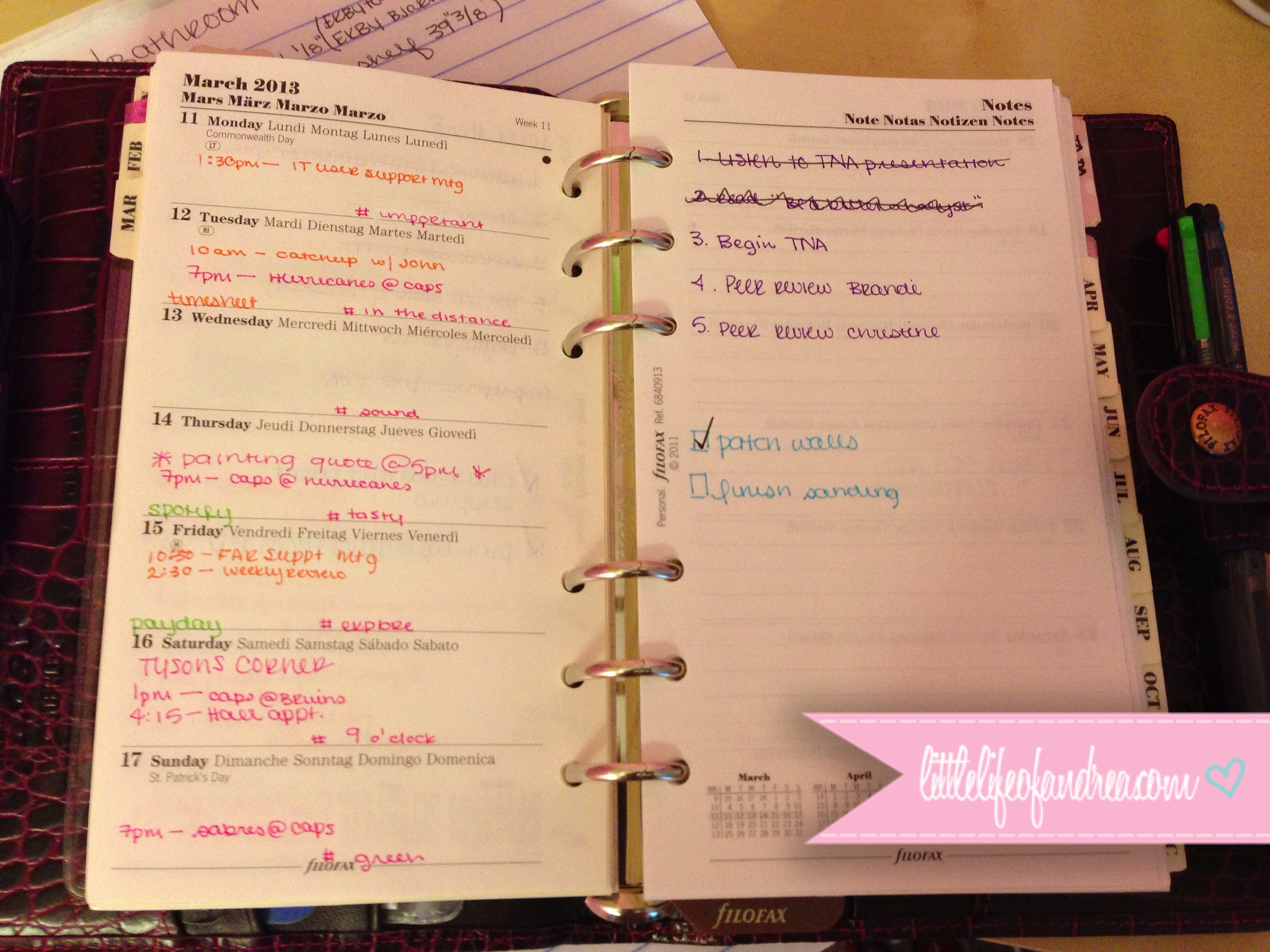
Here’s my week:

IMG_2400

So what’s happened? Based on the looks of my pages, it looks like I didn’t do anything, but I was actually so busy I didn’t have time to write anything.

Monday, I was out sick. Sadly, sick for me means doesn’t mean resting. It means cleaning the whole house. I suppose I feel so guilty for staying at home, I have to do something, and it usually results in cleaning. On this particular day, cleaning went along with singing Christmas songs which still perplexes me. Maybe I was a bit out of it.

On Tuesday, I met with my boss and a coworker to finalize our presentation of numbers relating to the last fiscal year. To summarize our 30 some slides, usage of our online support knowledge base, which I now manage, has more than doubled in the past year, and online support requests and phone requests have both decreased, which we’d like to believe is due to users using our knowledge base rather than picking up the phone or emailing us. The big one for my office is that the number of tickets our student staff resolve has gone from an average of 2% to nearly 56%.

Wednesday, we presented the presentation we made for the first time to our own group, and I also barely made it to a meeting to discuss the possibilities of online tutoring. I almost never have meetings after my lunch break which is at 2pm, but on this day, I had one at 3:30pm with the CIO of our department. At 3:30, I got a notification reminding me of the meeting, so I raced half way across campus in around 3 minutes, in 5″ heels. I was out of breath to say the least.

We presented our presentation for the final time on Thursday. This time it was to the managers and assistant VPs. Now, I regularly attend these meetings as I’m unofficially a manager, but every time, I feel so out of place. Not only am I the youngest in the room, but everyone else in my area that attends sits in the back of the room while I sit at the table. Part of me wonders if they know something I don’t, like maybe we aren’t supposed to sit there, but then I think about Sheryl Sandberg’s book and one of the only things that resonated with me  was when she discussed how women should feel comfortable sitting at the table. So as the youngest in the room, and one of the few women, I’m going to keep my seat at the table until someone tells me not to.

On Friday, I got to leave work early for a doctor’s appointment. It was a lovely day so that was nice, but I also had a tree removal company at my house that day, so I couldn’t exactly go back home right away. Instead, I treated myself to Starbucks and some pita crackers, which I ate while reading at our local plane observation area. I live near an airport, and we have an area where you can park and watch planes take off or land. It also has a play ground and some bike trails, so it’s usually pretty busy, but every once in a while, I like to go there and just chill.

Saturday was oh so fun. I got to spend it cleaning and grocery shopping. The joys of being an adult. To be fair, I didn’t do much cleaning. I hula hooped half the day away while drinking coffee. I did put away some of the nail polish I’ve left sitting out all over the dining room though.

And then there’s Sunday… Do you ever have one of those days where you’re just insanely productive. This was one of them. By 9am, breakfast was made (my first successful cheese omelet… and toast). Three loads of laundry were done and put away by 2pm. Trash and recycle was taken out. Carpets were steam cleaned and vacuumed. Makeup brushes were cleaned. Dinner was cooked and piña coladas were enjoyed. I even picked out outfits for the whole week before going to bed! It was lovely.

How was your week?

Signature

{Filofax Friday} The Latest Addition to the Family

I wasn’t planning on buying another Filofax. Then again, I don’t know many people that do actually plan to buy a Filofax. They just seem to jump into your cart and appear at your door a couple days later.

I own a personal-sized Osterley in Plum already, and while I’m not crazy about the layout on the inside, I do love the 2 pen loops and I also love the look which is a shock in itself. When they first came out, I hated them. I actually said, that’s one line I will never buy… {I guess I was wrong.} I’m not sure what it is about it, it just makes me feel fancy. And for anyone who thinks they look a bit hard and not nice to touch at all, they are just lovely and oh so smooth.

Anyway, the grey Osterley had been calling my name. It kept popping up in videos, and all I could think was “Grey is one of my favorite colors and I love my plum Osterley, so I’ll have to get one one day.”

Well it just so happened that one day I decided to just look at them on Pens & Leather. I was just planning on checking out the prices, factoring in any discounts… you know the whole deal. So on to the site I went, and on the grey Osterley’s page, I saw two words, “SOLD OUT.” Then I saw “DISCONTINUED.”

I basically went into full on panic mode. {Yes, I realize that seems crazy.} Here I was wanting one, and I was too late. Filofax was sold out. Amazon didn’t have them either. There weren’t any on Ebay. I turned to Google Shopping and found them still available at Goldspot. Into my cart one went, and without thinking twice, it was ordered and on it’s way to my house.

I’m happy to say, it has arrived without any damage. The rings are perfect, and I can sleep a little bit easier knowing I didn’t let my Osterley get away.

So without further ado, I introduce to you, my new grey Osterley.

PersonalGreyOsterley

I’m still playing around with the inserts and the set up. I’ve also acquired a few new goodies so I’ll likely be back with an updated set up, and maybe something about all the fun bits and bobs I’ve gotten. The My Week feature may even make a comeback. We shall see.

Until then, thanks for reading. Happy Filofaxing, and have a great weekend!

Signature

What’s Wrong with Erin?

I bought an Erin Condren Life Planner for the second time this year, and let me say I adore it. It screams everything Andrea. I mean it even matches my room! There’s just that something about it that I’m not liking, and for the longest time, I really had no idea what it was. I think now I’m finally starting to put things together and figure it out, and it really has NOTHING to do with the planner.

So what’s wrong with it if it’s not the planner?

Years ago when I was browsing Flickr, I stumbled on some Moleskines which led me to Filofaxes which led me to Philofaxy, and then I found all the people in the community. I fell in love with the blogs, the videos, the pictures, everything. Now I’m always reading up on the latest Filofax gossip. It’s fun to see how the community’s grown and evolved over time. With every new person, we get new ideas and things like washi tape or Martha Stewart dew drops go viral and then you see them in everyone’s planners.

That’s when I started to realize something in the back of my crazy mind has always been screaming Filofax even when I’ve had a different planner, and I think that thing has been the community.

Erin Condren’s Life Planner definitely has a following online. I’d say to some extent it has a bit of a cult status in the blogging world, but what it doesn’t have is a community of people that are constantly sharing updates and stories about them like Filofax does. That’s what brings me back to Filofax every single time. And, hey, maybe that’s weird to some people, but we’re all weird in our own ways. My way happens to be planners and stationary. Whether I use what I buy or not, I like having it. I like reading about it. I like looking at it.

So while I tried to jump into my Erin Condren planner whole heartedly, I had this nagging thought always screaming “But what about Filofax?!” Maybe I should have watched a ton of Life Planner videos instead of Filofax ones, who knows, but as usual Filofax won me over. And of course, as we all know, how can you resist buying a new Filofax?!

I certainly couldn’t, and so my next post will be about my latest addition to the family.Signature

How I’m using ReadKit to Keep Track of Blogs and Videos

ReadKitOne of my more recent posts was about how I keep up with all the things I follow on the internet. My system has evolved little by little over the years, but the general concept has stayed pretty consistent. I subscribe to RSS feeds using an RSS reader and save the articles I want to read for later. Of course I’ve also managed to find some great little apps over the years to help me with this like Reeder, Feedly, and Pocket. If you missed how I’m using them, check out the article I linked above.

Today I’m going to introduce you to the newest app I’ve learned to love.

It’s no secret, I’m a diehard Reeder app user. It was one of the first apps I got for my iPhone. It was the first app I downloaded to my iPad, and I was part of the Mac version’s beta program. Reeder’s earned coveted spots in my dock on my MacBook Pro and my iPad, and if the 4 spots on my iPhone weren’t already claimed, it’d be there too. I really can’t say enough about this app. It’s simple. It looks great, and it has a ton of features. It just works, and I love it.

BUT….

The day Google Reader died, I think Reeder died a bit too. I moved to Feedly well in advance of the day Google Reader was going away, but Reeder wasn’t updated to support Feedly. Reeder got removed from my dock and put away to make room for Feedly’s iOS app and their web version on my Mac.

Reeder for iPhone was eventually updated to support Feedly, and it’s happily made it’s way back onto my home screen, but the iPad and Mac OS X apps were put on hold. The developer said that those apps weren’t as easy to update and that he’d focus on creating new versions instead. The iPad and Mac OS X versions have since been removed from the App Store, and I was left without Reeder.

As it stands now, I don’t do anything RSS related on my iPad. I haven’t found an app I like enough to replace Reeder for the time being, but I don’t use my iPad to manage incoming content anyway.

On my Mac, I was semi-happily using Feedly’s cloud interface {read:patiently waiting for Reeder}. Then, in came an article about ReadKit. It integrated both Pocket and Feedly into one app, and I’m all for having fewer windows open on my computer, so I bought it for $4.99. It does also support other RSS services and things like Instapaper by the way if you don’t happen to use Feedly or Pocket.

Now for my first impressions. I wasn’t too sure what to do with it at first. I liked the idea of one app for Pocket and Feedly, but I struggled with the interface a bit. I’m still not a huge fan of Feedly’s interface, but I do enjoy Pocket’s apps so that one was a bit harder to give up. I also have to comment that the icon is not the best. In fact, I hate it sitting in my dock, and I’m going to find a new one after I’m done with this post. As simple and clean as the app itself looks, I think it deserves a better looking icon. The biggest draw to ReadKit is having all of my content in one place. My only complaint is that there isn’t any way to save my items from Feedly to Pocket without dragging the article to the Unread section in Pocket. You can’t right click and select “Save to Pocket.” There’s not button or hotkey. You can only drag and drop. I believe they are working on adding some new features so I’m keeping my fingers crossed that will be one of them.

I bought ReadKit on a whim, as I do with most things. I honestly just hoped it would keep me content until Reeder’s updated, but now I’m not sure I’ll want to go back. ReadKit has really changed how I collect, manage, read, and watch content from various sites on the internet.

The one feature that keeps me using it is the smart folders which I completely blew off at first, but they have changed everything. So here’s how I use ReadKit.

My RSS subscriptions from Feedly get pulled into a smart folder called “Incoming.” That’s where I make my first sweep. If I wanna read something, I drag it to Pocket’s Unread list in the sidebar and wait for the number to go up to make sure it worked because I’m paranoid like that. {ReadKit developers…. I’m anxiously waiting for that button/hotkey…}

Anything I save to Pocket gets added to a smart folder called “Read Later.” I skim the “Read Later” folder and  favorite anything that I need to view on the computer, includes a video, or I might want to pin.

Anything that gets favorited in Pocket, or starred, whatever you want to call it, gets added to a smart folder called “Follow Up.” Most articles don’t make it to “Follow Up” so this is usually a pretty small folder, but I’ve broken it down a bit further based on type of content.

If it’s something I’m going to want to add to Pinterest, I add the tag, “pin”, to the article which moves it out of “Follow Up” and into a “Pin It” folder. Similarly, I can add the tag “video”, which will move the article to a Video folder. I can easily batch all my “pin-worthy” finds at once, and if I’m in the mood to binge on YouTube videos, I can do that too.

Now, I do the majority of my processing and reading on my Mac using ReadKit so that’s where this system really shines, but I can also mark articles as favorites and add tags from the mobile Pocket apps, so I can really use this system anywhere, it’s just more efficient using ReadKit.

After combining all my reading into ReadKit, it became really apparent that I had ironed out all the kinks in my system for everything except for YouTube. I could read all in one place, but videos were another story. I had some blog articles that contained non-YouTube videos saved in Pocket. I also had my Watch Later playlist and my overflow “Watch Later 2” list in YouTube. I started thinking, “Wouldn’t it be nice if everything was in one place?”

Now I’ve tried using an ifttt recipe in the past that added any video I marked as “Watch Later” on YouTube to Pocket. Sounds great right? WRONG. If I watched a video in Pocket, it still stayed in my Watch Later playlist. Eventually my Watch Later list was going to fill up making that recipe useless unless I also went to YouTube and removed it. That meant I had to remove it from 2 places… No good.

In the end I just saved all the videos from my YouTube playlists to Pocket. They of course got favorited with a video tag so they now appear in my Video smart folder in ReadKit, and since they aren’t in YouTube playlists that have a 200 video limit, they can all go in ONE list not two or three.

I actually really liked this set up. In fact, I loved it so much, I recently decided to add my YouTube subscriptions directly to Feedly. Now, when someone I subscribe to uploads a new video, it shows up in my Incoming folder, and I don’t have to log into YouTube and scan my subscriptions page for new videos I missed.

I’m really loving how I have settled into this system. It’s really helping me manage the information overload. In fact, I have less than 10 things to read later, and I’ve whittled my videos down to 204.

If you like to follow blogs, videos, or really anything on the internet, check out Feedly, Pocket, Reeder, and ReadKit. They are all fantastic apps. I hope you enjoyed a glimpse into my OCD mind, and how I sort of keep track of everything.

Signature